
New Unified Client Portal in GoHighLevel: Setup Guide
The new unified client portal in GoHighLevel is one of the biggest visual upgrades the platform has shipped in a long time. If you run a community, sell courses, or share documents and invoices with clients through your portal, this update takes the whole experience from a basic startup look to a genuinely polished app.
The best part is that you do not have to switch blind. GoHighLevel lets you preview the new portal first, so you can check your custom code, branding, and content before your members ever see it. In this guide I will show you how to turn the feature on in Labs, activate it for your sub accounts, preview it, and then enable it for everyone.
This works the same way whether you are inside your AlphaBlossom CRM or a standard HighLevel (GHL) sub-account, since AlphaBlossom runs on the GoHighLevel platform.
New Unified Client Portal in GoHighLevel: Setup Guide
What Is the New Unified Client Portal Experience in GoHighLevel?
How to Turn On the New Client Portal in GoHighLevel Labs
How to Activate Visibility and Access for Sub Accounts
How to Preview the New Client Portal Before You Switch
What Your Clients See in the New Portal
How to Enable the New Portal for Everyone
If you'd rather see this in action before diving into the steps, watch the full video walkthrough here or watch "The New GoHighLevel Client Portal Is Here (Switch in 2 Minutes)" on Youtube
What Is the New Unified Client Portal Experience in GoHighLevel?
HighLevel has had communities and a client portal for a while now. If you think about Skool or Circle, HighLevel has its own version built right in, with a portal wrapped around it where clients can join community discussions, take courses, track affiliate links, and view documents and invoices. The problem was the look. The old portal home page felt empty, the design was basic, and the wording on things like joining a group was clunky.
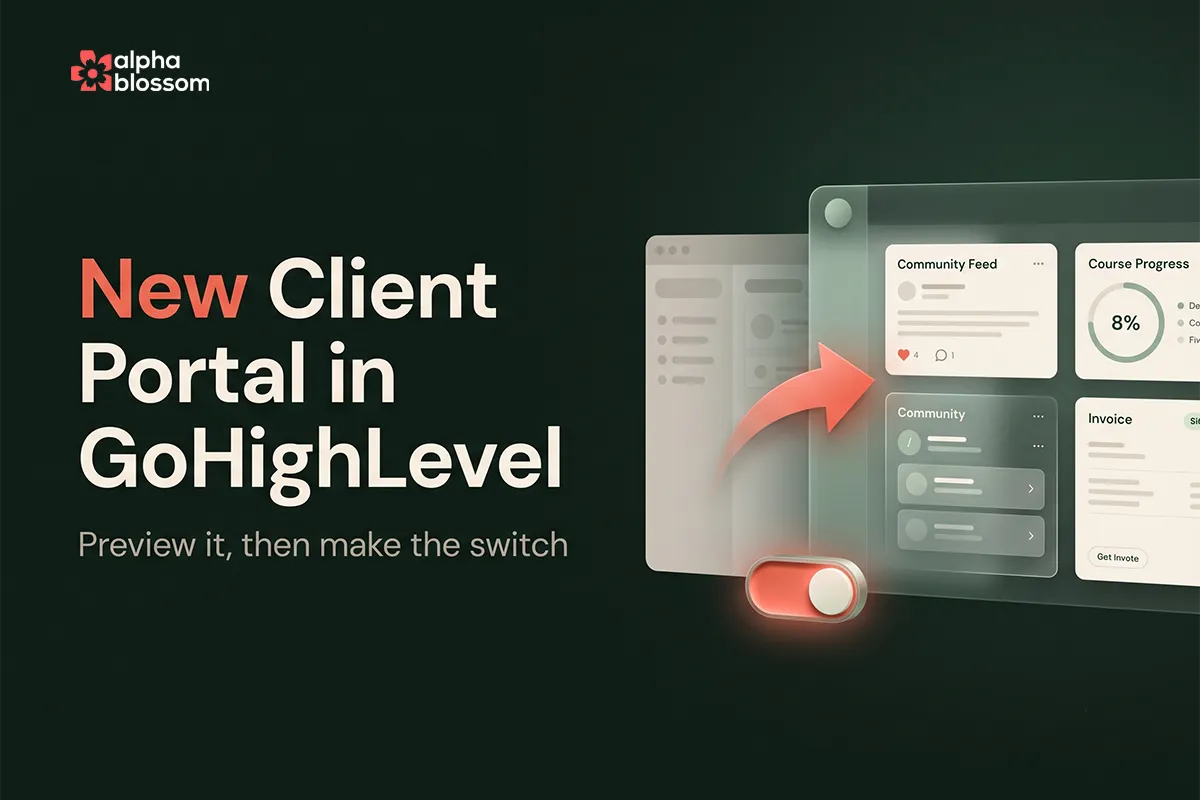
The new unified client portal experience fixes all of that. It pulls your communities, courses, files, estimates, invoices, and affiliate links into one seamless portal that feels premium from the login page onward. It is currently rolling out as a beta feature through Labs, and per GoHighLevel's official support documentation, more portal features are on the way that bring it even closer to what dedicated community platforms offer.
How to Turn On the New Client Portal in GoHighLevel Labs
Because this is a beta feature, it gets enabled at the agency level first. If you are not the agency owner, reach out to whoever is and ask them to flip it on. The process works the same way as other Labs features, like when you enable AI Studio permissions in GoHighLevel.
Switch over to your agency view.
Go to Settings and click Labs.
Click the Sub Account tab and scroll down the list of beta features.
Find the New Unified Client Portal Experience.
Click View Gallery to look at screenshots of the new portal before you commit.
The gallery is worth a minute of your time. It shows the new course homepage, the client estimates view, the files area, and the updated community feed with channels and announcements, so you know exactly what your clients will get.
How to Activate Visibility and Access for Sub Accounts
Once the feature is turned on in Labs, click Activate Features. From here you choose which sub accounts get the new portal. You can use the bulk actions to enable visibility and enable access across multiple sub accounts at once, or check them individually. Enable access simply means the new portal is switched on for whichever sub accounts you have checked.
How to Preview the New Client Portal Before You Switch
Now jump into the sub account where your membership or community lives and open Memberships. It is easy to miss, but over on the right you will see a New label inviting you to try the new client portal. Click it and a pop up appears with the option to open a preview.
The preview drops you into the full new experience, starting with the login page and landing on the new dashboard. This is your chance to check everything before your members see it, especially if you have custom code or custom CSS applied to the current portal.
What Your Clients See in the New Portal
The new dashboard puts far more information within quick reach and looks much more professional. From there your clients can open their communities and browse the different channels, jump into courses with a proper overview page and a pick up where you left off option, and view their invoices, estimates, and contracts. If you share files with clients, those live here too, and if you run an affiliate program, members can grab their links right inside the portal.
How to Enable the New Portal for Everyone
Happy with the preview? Head back to the pop up, check the box confirming you have previewed it, and enable it for everyone. From that point on, anybody who visits your community or portal gets the completely new view. You can still use custom CSS to fine tune the look, but the default design is strong enough that many accounts will not need to touch it.
Why the New Portal Does Not Show Up Right Away
Here is the gotcha that catches almost everyone. After you enable the new portal, your existing link may still load the old version. That is because active sessions need to refresh. Just log out, log back in, and the new unified client portal in GoHighLevel loads for you and for your members. If someone on your team says they still see the old portal, have them do the same.
Is the New Unified Client Portal Worth Switching To?
Absolutely. This upgrade takes the portal from functional to genuinely impressive, and it signals a bigger investment from HighLevel in communities and client experience. If you are polishing up your account anyway, it is a great time to review setting up your business profile settings in GoHighLevel so the rest of your account matches the new front end. And if you want your client experience running on autopilot behind that new portal, our complete playbook for automating your HighLevel setup is the place to start.
Related Links
Related Videos
Video Transcript
[0:00] Hey! Guys and Gals. In this video I'm going to show you something really cool with the HighLevel communities. So if you're not aware HighLevel has a community as part of the app. Think about school or Circle or some of these other communities. HighLevel has its own built in. And they have a portal around that also. Which lets you see certain things like you can track your affiliate links. You can look at documents invoices things like that. It's pretty basic in terms of appearance. So one of the things that I didn't really like the overall appearance functionality especially the portal part of it. Well now they have a complete upgrade. It's completely unified. It looks so much better.
[0:36] And in this video I'm going to show you how to turn that on. Make the switch. Also we're going to go over how to preview that first so you can make sure everything looks good in case you have maybe some custom code added. Or maybe there's something that you don't like. Or you don't have things turned on. So you can preview first before you switch it over. And I'm going to be switching it over and leaving it because it looks so much nicer. And I'm really excited to show this with you guys. So let's jump into it. Before we do make sure to click the subscribe button down below. Like this video. And leave a comment.
[1:02] And if you're new to HighLevel or if you're thinking about starting your own agency. Got my affiliate link down below. It gives you a 30 day free trial. Along with a free bootcamp. And I've also got my free community downbelow. Click the link and you can join there. And I'm happy to help you along your HighLevel journey as well. So let's jump into it. And I'll see you on the other side. Okay. So we're inside my community. And I just wanted to show you before I switch it over. Show you what you may see if you're using it. Or what the community has looked like up to this point. This was my private community. I've now open it up to the public.
[1:37] So you can grab the link down below if you want to join. You're free to post in here with questions. Or just read our post once a week. I do free Office Hours helping people out. Answering their questions. And so. Up here we've got Discussions. We've got Learning. Courses. Events. Leaderboard. Members and About. And then if you go to the homepage. You've got the home portal. You can see it's kind of empty. It doesn't look great. And to be fair. I'm only using a small portion of this. I'm not using this for customer documents. Or invoices. Or things like that. If you do you'll see a lot more stuff here. But even so. It's just super basic.
[2:12] Never really look good. And then you know if you want to click to go to a community or something. Join a group. The way it's worded it's just not that great. So before I switch it. I want to show you this is currently a beta feature. So you may have to have it turn on in labs. If you're not an agency owner you may have to reach out to the agency owner. And ask them to turn it on. So I'm going to click over into my agency view here. And I'm going to go to Settings. And then we're going to go down here to Labs. And if you click on the sub account tab and scroll down.
[2:41] You can see there's all kinds of features that are constantly being integrated. They just added a Slack Market place integration. So all the beta stuff coming out comes through here. But if you scroll down you'll see the New Unified Client Portal Experience. And they actually have a they explain what it is. But they actually have a view gallery here. So you can see some screenshots to what the new one looks like. It's so much nicer. You can scroll through and see a couple images. This is the course home page. If you have client estimates. If you use a estimates feature. They'll all show up here. So the client logs in. They can see their own estimates here.
[3:13] So it's a portal for them to view that. So anybody accessing the portal. The community files that they upload. They can access all that inside up here. And then here's the updates. Which is the actual community itself. And there's different channels. Announcements. And things like that. So even this part just looks much nicer. It's such a big upgrade. So enough about that. Once you have that turned on. You can see I've already got it turned on. So I can't show you how to do that. But if you wanted to activate it. You would come into the activate features. And then you can activate which sub accounts you want. You've got bulk actions here. You can enable visibility.
[3:46] Enable access. So enable access means it's just going to be turned on. For whatever sub accounts you have checked here. So. I'm just going to go back into my sub account. Where I have my membership. And inside of my sub account I'm going to go into Memberships. And it's easy to miss. But over here in the right you'll see Try the new client portal. So you just click on that. You get this pop up. And if you want to you can view a preview first. So if you click the open preview. You can come in here and see what it looks like. You've got the login page. And then it takes you straight here. So the dashboard is so much nicer.
[4:17] So much more information here. Quickly accessible. Just looks very professional. I'm on an ultra wide screen here. So it's a little bit stretched out. But yeah. You can come in here and you can see your communities. And then you can go inside of your community. And you've got the different channels here. It just looks much nicer overall. In terms of using everything. And if we go back to the dashboard. There's an easy button to get there. And then if you go to Courses in here. You can see the course page is much nicer. It gives you a overview. A pick up where you left off. So you can easily just resume the course that you were taking.
[4:50] And then. Customers can view their invoices here. They can view Estimates. Contracts. And then if you're sharing files those will be here. And if you have an affiliate program people can come in here and grab their links. Things like that as well. So. It's just really nice here. So yeah. I want to switch it on. So now I'm going to come back here. And I'm just going to check the box. I've previewed it. And I'm ready to enable it for everyone. So now when I turn this on. Anybody that comes to my community they're going to be experiencing this completely new view. Which is exactly what I want. And you can use custom CSS and things like that.
[5:25] To further customize it. But for me I'm just going to leave it. And I have a link in the sidebar. So now if I click that link to my community. Anybody that's my members have this quick access link. And you can see that it hasn't switched yet. So let's try to refresh that. We may need to go to a different link. So let me try that out here. Let's see what we've got here. So currently it's still stuck here. So I'm going to log out. And then we're going to log back in. And let's see if it brings us into the new portal. It may take some time. There we go. So yes. So you do have to log out.
[5:57] And log in. So if you just come and check this out. You can see here. Active sessions may need to refresh. So just logging out and logging back in. Took me into the new portal. And now everything's set up. So on my community logs in they will be able to see the new portal. And it's just going to be a much nicer experience along with the things that are coming in the weeks ahead. Alright! Guys and Gals. So as you can see the new community portal it's so much nicer. The actual community pages. The course home page. Everything just looks so much better. It's seamless. And it really took it from a startup looking app to a really polished app.
[6:33] And in the weeks to come they're going to have some new features as well. That are going to really take it much closer to what school is providing. So I'm super excited to see what's coming next. But this is a huge step. Had the community app for a little over maybe close the year and a half two years now. And so I'm so excited to see this complete overhaul. And see this new direction. So with that said I will see you in the next video. Again don't forget to subscribe to the channel if you're not already. Like this video. And comment below. And I will see you in the next one.