
AI Studio Permissions in GoHighLevel: How to Enable
If you logged into GoHighLevel recently and noticed AI Studio is missing from your sidebar, or someone on your team suddenly cannot access it, you are not alone. GoHighLevel just added AI Studio permissions to the roles and permissions system, which means access is no longer automatic for every user. Some accounts that previously had full AI Studio access now show nothing at all, and the people who suddenly cannot find the feature are understandably freaking out.
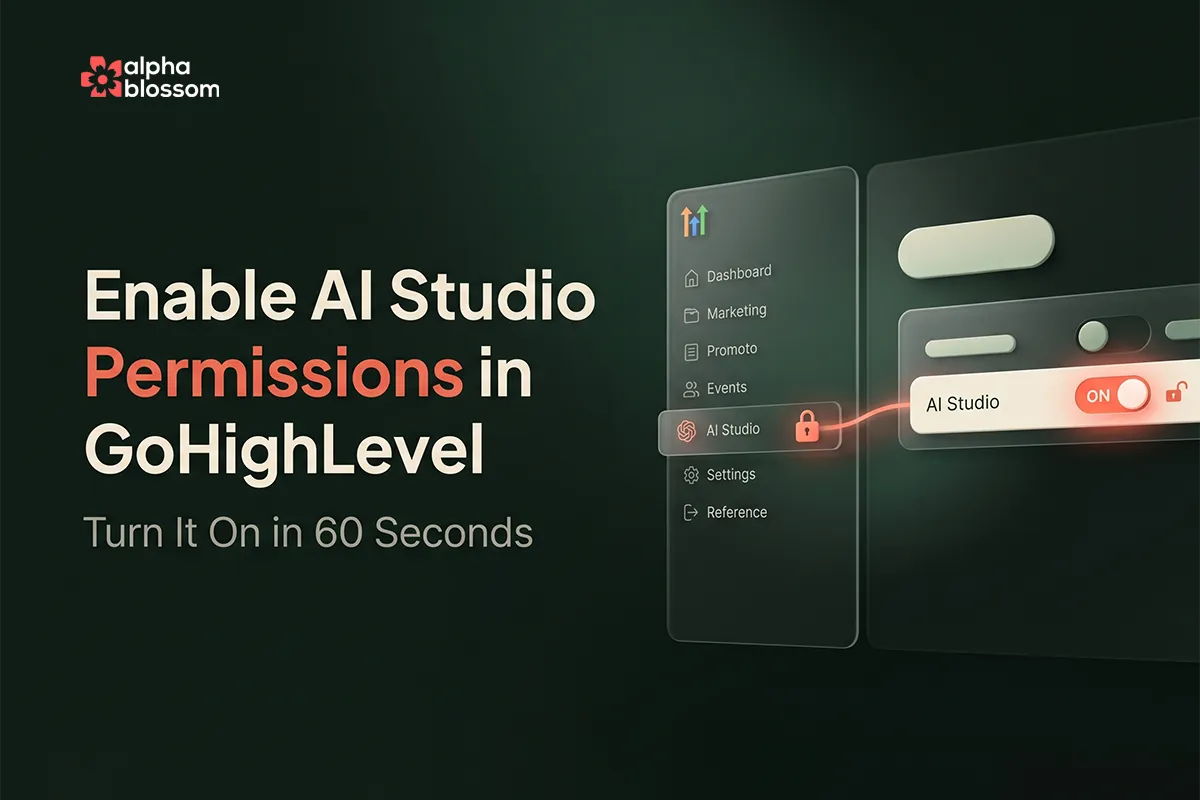
The good news is the fix takes about 60 seconds. The account owner (or an agency admin with the right access) just needs to flip a toggle inside roles and permissions. Once that is done, the user logs out and back in, and AI Studio reappears in the navigation exactly where it used to be.
In this guide I will walk you through what changed, exactly where to find the new AI Studio permissions setting in GoHighLevel, how to grant view-only or full access, and why this update almost certainly signals that token-based pricing for AI Studio is coming soon.
AI Studio Permissions in GoHighLevel: How to Enable
Why AI Studio Permissions in GoHighLevel Changed
What Users See When They Do Not Have Permission
Who Can Change AI Studio Permissions in GoHighLevel
How to Enable AI Studio Permissions in GoHighLevel (Step by Step)
Other Granular Permissions Worth Knowing About
If you'd rather see this in action before diving into the steps, watch the full video walkthrough here or watch "AI Studio Locked in GoHighLevel? Here's How to Turn On Permissions" on Youtube
Why AI Studio Permissions in GoHighLevel Changed
For the last few months, AI Studio has been a free feature available to every user on a sub-account, no questions asked. That is changing. HighLevel just rolled AI Studio into the standard roles and permissions framework, which means it is now controlled at the user level just like every other feature in the platform. If your account owner has not yet turned the permission on for a given user, that user will not see AI Studio at all when they log in.
This is not a bug. It is a deliberate change, and the most likely reason is that GoHighLevel is preparing to start charging for AI Studio token usage. Once token pricing kicks in, you (or your clients) will not want every user on the account burning through tokens without oversight. The new permissions layer lets the account owner decide who can use AI Studio and who cannot, which is exactly the kind of control you need before a paid feature goes live.
What Users See When They Do Not Have Permission
If a user does not have the AI Studio permission enabled, the feature simply does not appear in their navigation. There is no error message, no greyed-out menu item, and no notification explaining what happened. The user logs in expecting to find AI Studio where it used to be and it is just gone. That silent removal is what is causing the panic in the HighLevel community right now.
Who Can Change AI Studio Permissions in GoHighLevel
Permissions are controlled at the account owner level. The account owner can change any user's permissions, including those of agency admins. Agency admins can change permissions for users below them in the hierarchy, but they cannot change their own permission unless the account owner grants it first. If you are a regular team member who cannot see AI Studio, you cannot turn the permission on for yourself. You have to ask whoever owns the account to do it for you.
How to Enable AI Studio Permissions in GoHighLevel (Step by Step)
Here is the exact path. Log into GoHighLevel as the account owner.
Click the gear icon in the bottom left to open Settings.
In the settings sidebar, click My Staff.
Find the user you want to grant access to and click their name to open their profile.
Click the Roles and Permissions tab.
Scroll down the permissions list (or use the search box at the top) and find AI Studio.
Toggle AI Studio on. You can choose View Only (the user can see AI Studio but cannot edit projects) or View and Manage (full access).
Click Save at the bottom of the page.
Once saved, the user needs to log out and log back in for the change to take effect. After they log back in, AI Studio will be in the left navigation just like it was before.
View Only vs View and Manage
The view-only option is useful when you want a team member or a client to see what is being built in AI Studio without giving them the ability to make changes or burn tokens. View and Manage is the full access option, equivalent to what every user had before this change. For most agency setups, give your senior team members full access and use view-only for junior staff or clients.
Other Granular Permissions Worth Knowing About
While you are inside the roles and permissions panel, take a minute to look at the rest of the list. GoHighLevel exposes granular permissions for almost every part of the platform: AI agents, account settings, automations, blogs, calendars, contacts, conversations, opportunities, payments, and more. You can also restrict users to viewing only their own assigned data, which is useful for sales teams where each rep should only see their own leads.
This is a level of control most CRMs do not give you, and it is one of the reasons agencies pick GoHighLevel for client work. If you have not audited your team's permissions in a while, this is a good moment to do it. Pair this with our guide on moving sub-accounts cleanly between agencies if you need to think about access at the agency level as well.
What This Means for the Future of AI Studio
The most useful thing you can take away from this update is that AI Studio is about to start costing tokens. HighLevel has been clear about this for a while. The permissions update is the last piece of plumbing they need in place before they can flip the switch on paid usage. If you have not yet trained your team on how to use AI Studio efficiently, especially on when to use the visual editor instead of the AI chat to save tokens, now is the time. The same goes for setting up SEO properly on the sites you build, which we cover in our AI Studio publishing and SEO guide.
Quick Fix Summary
If someone on your team says AI Studio disappeared from their account, you do not need to file a support ticket. Go to Settings, My Staff, click the user, open Roles and Permissions, toggle AI Studio on, save, and have them log back in. The whole fix is under 60 seconds. The more important conversation is what you do with AI Studio once token pricing arrives, because that is going to change how every agency approaches AI Studio builds.
Related Links
Related Videos
Video Transcript
[0:00] Hey! Guys and Gals. We've been talking a lot about AI Studio. The amazing new addition to our CRM. Or if you're a HighLevel user inside of your HighLevel account. You'll see that. Basically it’s a vibe coding. Where you can create apps. Tools. Calculators. Slideshows. Quizzes. All kinds of things just using chat. And it codes it up for you. It works amazingly well. And currently it's a free feature. So. It's been extremely popular inside of the HighLevel community. And we've got a lot of videos about that recently. I wanted to create this video today. This will just be a short video. Today they actually added it to the permissions. So some of you might freak out if you log into your account.
[0:38] And all of a sudden you're like where did my AI studio go? Or if you try to access it and you see that you're blocked. So I just wanted to record a really quick video to show you where you can go in and manage those permissions just in case. And this is something I believe the account owner possibly agency admin can do. But I believe it has to be the account owner that sets these permissions. And so let's just jump into it. I'm going to show you where you can find the permissions. And how you can change them. And give access to whoever you want to do that. I'm assuming this means that they are going to start rolling out the charges fairly soon.
[1:08] And this is probably in preparation for that. So that that way if you don't have a bunch of people accessing it that you don't want to access it. And then you know charging for token usage and things like that. So anyways let's jump into it. And I'll show you. It's be super short video. If you're not already subscribed to the channel just click that subscribe button down below. I also have a 30 day free trial. The HighLevel. Click the link down below. As well as a free bootcamp to help you get up and running quickly. So check that out. And I will see you on the other side. Alright! We can see now we are inside of the HighLevel dash.
[1:41] And you can see here we have an Ask AI. Which is another amazing feature. If you haven't seen this yet. This is not available to everybody yet either. I think if you're on the $97 that's what a HighLevel charge us. You may have markup depending on who your agency is. This lets you do amazing things like create social media posts in bulk. Create automation. And things like that. So it's pretty cool. But the one we're talking about today is AI studio. So this is again where you can come in here and you can just create amazing Websites. Apps. Quizzes. Slideshows. All using chat. And then recently I've got a video. Now you can do visual edits which don't use any AI tokens.
[2:17] So if you want to change Images. Change fonts. Things like that. You can actually do that as well. But let's get back out here. And I'm going to log in as somebody else. So you can see what happens if you don't have permissions. Okay. We're going to click on this. And now I'm logged in as somebody that does not have permissions. And you can see it just doesn't show up at all. On then the AI tools. So this user's name is Kenji. So let's go into Settings. Profile. And you can see this is Kenji. If we go into. My Staff. We’re going to see his profile here. He's an account admin. But you'll see the Roles and Permissions.
[2:51] Were set by somebody else. So he doesn't have access to enable this. So I'm going to log in as myself. I have access to this account. Then I'm going to show you how to set these permissions. And then we're going to go back in As Kenji. Log in again. And we'll see that its. Will be showing now. So now you can see for me it's showing. Because I have permissions. So I'm going to go back into Settings. I'm going to go into My Staff. Going to log back into Kenji's account. And go to Roles and Permissions. And you can see on the left you've got all of these. So. Yeah. It can just take you straight to what you're looking for.
[3:21] We're looking for AI studio in this case. So we just want to come down here. And you can toggle it on. You can also give people options just to view it. Or to view and manage it. We're going to get full access here. And then we're going to save this. And it's as simple as that. So now let's go back and log in as Kenji again. And we should see the AI studio now showing up in our navigation. If we did everything right. There you go Now you can see AI Studio right here on top. Kenji can now access. Get in here. And do whatever he needs to do. So Yeah. I just wanted to record this video.
[3:54] Because I've seen a lot of people in the HighLevel community. Freaking out what happened to my AI studio. I don't have access to it anymore. And also I thought it'd be just a great way to remind you guys. Or if you don't know already that there are a lot of granular permissions inside of HighLevel. So if we go back into My staff. You can see you can really set Roles and permissions. So you can set as an admin or as a user. You can restrict them to view only their assigned data. And then here's where you can come down here and you granular with all the different things. AI Agents. Account Settings. If you want to give people access to automations.
[4:26] Blogs. Calendars. So this is really where you can control what your staff has access to. When they log in. Under their own logging account. So. That's really it. It's very straightforward. But don't freak out if you don't see the AI Studio. Just come in here. Talk to. If you don't have permissions to adjust these. You need to talk to whoever has the account that can get in here. And adjust these settings for you. Alright! Guys and Gals. So that's straightforward. If you're freaking out hopefully this video will help to you. And if not hopefully it still helps you understand more about the roles and permissions settings that you have access to. So you can really get really granular in allowing what kind of things people can access.
[5:02] When they sign into their HighLevel account. So that's it. If you like this video make sure to subscribe to the channel below. Leave a comment. And like the video. And again I have a 30 day free HighLevel trial down below. As well as the free bootcamp. And we also have our free community down below. So you're welcome to join that. Give you support. HighLevel questions. All kinds of things. Updates and things like that. So that's it Guys and Gals. I will see you in the next one.