
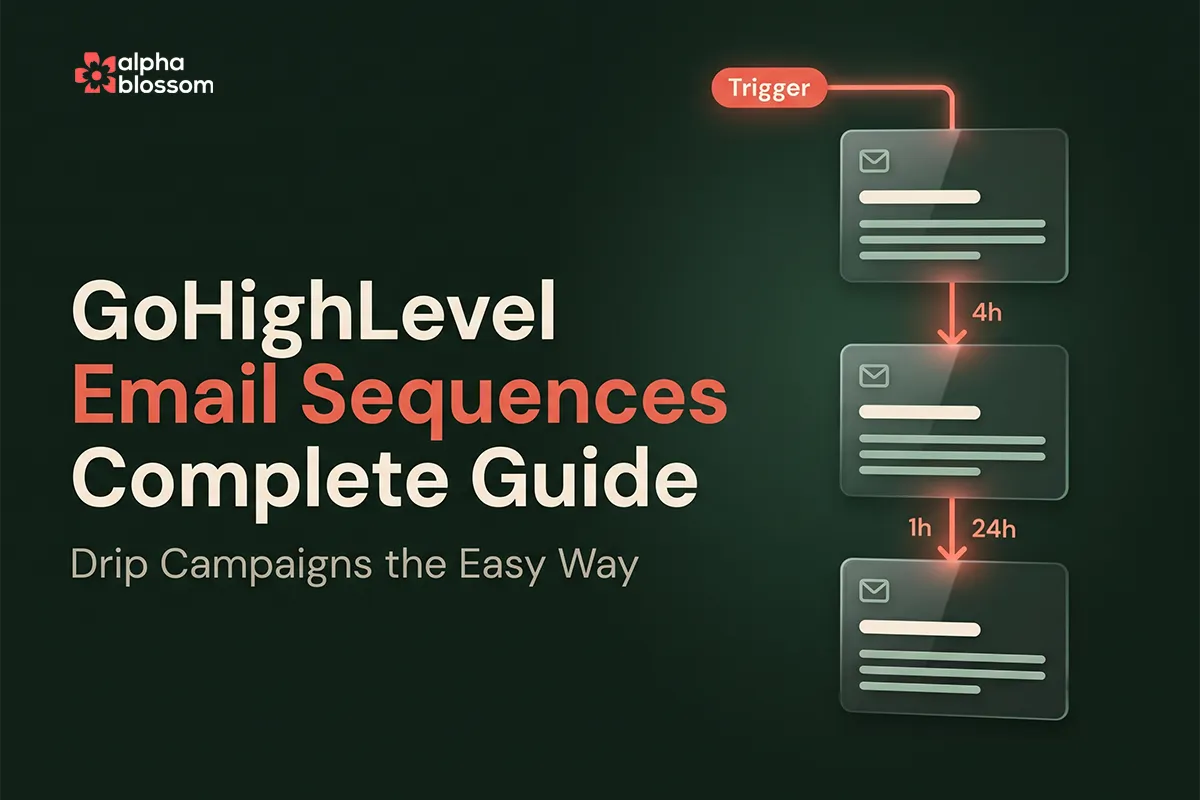
GoHighLevel Email Sequences: Complete Setup Guide
GoHighLevel email sequences are finally here. Until this release, building a drip campaign inside GoHighLevel meant either creating multiple separate campaigns (one per email, manually scheduled), or building a workflow with wait steps and email templates scattered across different parts of the platform. Neither approach was clean, and "give us a real sequence builder" has been one of the most requested features in the GHL community for at least a year.
The new Email Sequences builder lives at Marketing then Emails then Email Sequences. You set one trigger, pick your recipients once, design each email with delays and conditions between them, and the whole drip campaign lives in one screen. No jumping around the platform, no maintaining wait steps inside a workflow, no separate campaigns for each touchpoint.
In this guide I walk through exactly how to set up your first email sequence in GoHighLevel: where to find the new builder, how to configure the trigger and timing, how to pick recipients from contacts and smart lists and tags and segments, how to design each email, how to chain multiple emails with delays and conditions, and when to use Email Sequences versus Workflows versus single Campaigns.
GoHighLevel Email Sequences: Complete Setup Guide
What GoHighLevel Email Sequences Are (and How They Differ from Workflows)
When to Use Sequences vs Workflows vs Single Campaigns
Where to Find Email Sequences in GoHighLevel
Setting the Trigger and Timing
Designing Each Email in the Sequence
Adding Subsequent Emails with Delays and Conditions
Copying Settings Across Emails
A Note on Sender Domains and Deliverability
If you'd rather see this in action before diving into the steps, watch the full video walkthrough here or watch "GoHighLevel Just Added Email Sequences (Finally!)" on Youtube
What GoHighLevel Email Sequences Are (and How They Differ from Workflows)
An email sequence is a series of emails sent to a recipient on a defined schedule with optional conditions between them. The classic example is an onboarding sequence: email one when a user signs up, email two three days later with a how-to, email three a week later asking for feedback. These have been called drip campaigns, autoresponders, or nurture sequences depending on the platform.
Before this release, GoHighLevel users built sequences inside Workflows by stringing together Send Email actions with Wait steps between them. That worked, but Workflows are general-purpose automation tools, so the UX was clunky for what is really a very common email-marketing use case. The new Email Sequences builder strips away everything you do not need and gives you a dedicated drip campaign builder.
When to Use Sequences vs Workflows vs Single Campaigns
Three different tools for three different jobs:
Sequences: a chain of 2 or more emails sent on a schedule to a list of recipients. Pure email-only drip. Use this for nurture sequences, onboarding flows, abandoned-cart reminders, post-purchase follow-up.
Workflows: any automation with mixed actions (email, SMS, tag updates, opportunity changes, contact updates, conditional branching). Use Workflows when the email is one step in a larger automation, not the whole thing.
Single Campaigns: a one-off email blast to a list. Use this for broadcast emails, newsletters, announcements, sale notifications.
If your use case is "send 3 to 7 emails on a delay schedule", Sequences is the right tool. If your use case is "tag the contact, send an email, wait, check if they opened, branch to a different action", Workflows is still the right tool.
Where to Find Email Sequences in GoHighLevel
From your sub-account dashboard, go to Marketing then Emails. The middle of the page shows your existing Campaigns. Below that section is Email Sequences. If you do not see it, the feature may need to be turned on in Settings then Labs (HighLevel sometimes rolls features out as beta first), but as of this writing it is generally available.
Click Email Sequences then click Create Email Sequence to start a new one.
Setting the Trigger and Timing
At the top of a new sequence you give it a name (something descriptive like "Welcome Sequence" or "Cart Abandonment 3-Email") and configure the trigger that fires the first email.
Three Trigger Options
Send immediately: the first email goes out as soon as you start the sequence.
Schedule for a future time: pick a date and time for the first email to send.
Delay before the first email: set a wait period (e.g. 4 hours) after the sequence is triggered before the first email sends. Useful when you want a short cooling-off period.
For most onboarding or welcome sequences, "send immediately" is the right choice. For scheduled campaigns or limited-time offers, schedule the first email for a specific time. For abandoned-cart sequences where you want to give the customer a chance to come back on their own first, a 1 to 4 hour delay before the first email is standard.
Picking Your Recipients
The next section is who the sequence sends to. You have five ways to pick recipients, and you can combine them.
Contacts: pick individual contacts by name or email. Best for small one-off sequences.
Smart Lists: use one of your saved Smart Lists. These are dynamic lists that update as contacts match the criteria.
Tags: pick one or more tags. Anyone with a matching tag is included.
Pre-built Segments: GoHighLevel system segments like "engaged in last 7 days", "engaged in last 30 days". Useful for re-engagement sequences.
Custom Segments: segments you have built based on your own criteria (purchase history, opens, clicks, custom fields).
Stop on Reply
This is one of the most important toggles in the sequence builder. If a recipient replies to any email in the sequence, all subsequent emails to that recipient are paused. This is essential for any sequence that mimics a human conversation (sales follow-up, customer service check-ins) where continuing to drip after the recipient has already responded looks robotic.
Designing Each Email in the Sequence
Click on the first untitled email card to open the email designer. Give it a name (Email 1, Welcome, Day 0, whatever convention you prefer).
Templates and Attachments
You can build the email from scratch or load one of your existing email templates. GoHighLevel recently added a large library of pre-built templates as well, so you have a good starting point even if you have not built your own. If you want to attach a PDF or another file, you can do that here (after the template loads, you will see the attachment option in the email header area).
Sender Information
Set the sender name, sender domain, sender email, subject line, and preview header text. The sender domain has to be a verified email sending domain. If you have not set up email sending domains yet, read our complete GoHighLevel domain setup guide first because your sequences will fail to send (or land in spam) without verified domains.
Additional Settings
Track clicks: turn on so you can see which links recipients click in each email.
UTM tracking: I strongly recommend turning this on. UTMs pull into the contact record and into Google Analytics, so you can attribute downstream conversions back to the specific email that drove them. Critical for measuring ROI on sequences.
Tags: you can apply tags to recipients based on their behavior in the email (opened, clicked, etc.). Useful for segmenting follow-up.
Adding Subsequent Emails with Delays and Conditions
Click Add Email to add the second email in the sequence. Each subsequent email has two key configurations: the time delay and the condition.
Time Delay
Set the wait period between the previous email and this one. The unit can be minutes, hours, or days. Common patterns:
Welcome sequence: Email 1 immediate, Email 2 at 1 day, Email 3 at 3 days, Email 4 at 7 days.
Cart abandonment: Email 1 at 1 hour after abandonment, Email 2 at 24 hours, Email 3 at 3 days with a discount offer.
Post-purchase: Email 1 immediate (thank you and receipt), Email 2 at 3 days (how-to or onboarding), Email 3 at 14 days (review request).
Conditions
Each subsequent email has a condition that determines when it sends:
Once the previous email is delivered: the timer starts when the previous email is successfully delivered. This is the default and the most common setting.
If the contact opens the previous email: the email only sends if the recipient opened the previous one. Useful for branching, but be aware that open tracking is imperfect (Apple Mail Privacy and similar features inflate open rates).
For most sequences, "once the previous email is delivered" is the right choice. The "opened" condition is useful for engagement-based branching but should not be the default.
Send Time Windows
You can also set the days of the week and the time window when emails are allowed to send. Configure this to avoid sending at 3am in your recipient's time zone, or to avoid weekends if your audience is B2B.
Copying Settings Across Emails
Once you have configured email 2 the way you want it (sender, tracking, conditions, etc.), you can copy those settings to all subsequent emails in the sequence with one click. This saves a lot of repetitive setup if you have a 5+ email sequence.
A Note on Sender Domains and Deliverability
Email sequences are only as effective as your deliverability. If your sender domains are not properly configured with DKIM, SPF, and DMARC, your beautiful sequence will land in spam folders. We have a complete GoHighLevel domain setup guide covering all email sending domains, and you should also make sure your Business Profile defaults (like the unsubscribe link toggle and email verification) are turned on. Both should be configured before you launch your first sequence.
Saving and Sending the Sequence
Once all your emails are designed and the trigger is configured, click Save. If you have any incomplete fields (missing subject line, no template selected, missing sender domain), GoHighLevel will flag them at the top. Fix the issues, save again, then click Send Sequence to activate.
The sequence is now live. New contacts matching your recipient criteria will start receiving emails based on the trigger and delays you configured. You can monitor the sequence performance from the Email Sequences list, which shows opens, clicks, and conversions for each sequence.
Why This Matters for GoHighLevel Email Marketing
Before Sequences, the only way to do drip email in GoHighLevel was Workflows. That worked, but it forced you to think about email drip as automation, which it sort of is, but it also is not. Email marketing has its own cadence, its own metrics, its own optimization workflow. Having a dedicated builder lets you focus on the email part without getting distracted by branching logic, tag updates, opportunity changes, and the other Workflow features that you do not need for a pure email sequence.
If you have been running drip campaigns through Workflows, you do not need to rebuild them immediately. But for your next new drip campaign, use Sequences. The UX is dramatically better, and the focused builder makes you a better email marketer because you are forced to think about each email in the chain rather than treating them as nodes in an automation graph.
Related Links
Related Videos
Video Transcript
[0:00] In this video I want to go over a new HighLevel feature. That just came out. And this is something that has been highly requested Email Sequences. So if you're doing email automations and if you want to create an email sequence which is just a series of emails that go out one after another. You would have to do in a workflows and you might have to say I want to add a day or two. And then you got to build a template somewhere else. So I basically had to do in several different parts of the app. Now you can build templates. Or you can edit templates inside of the automations. But if you're just doing a sequence it's
[0:29] literally just a chain of events. And you want those emails to follow that. It's just much easier to have a sequence builder. Which a lot of different services provide. Well now you can do that in HighLevel. And I'm going to show you how to do that. So let's jump into it. If you're not already subscribed to the channel make sure to click that subscribe button down below. Like this video. And leave a comment. And if you're new to HighLevel. Or if you're looking to start up your own agency I've got a 30 day free trial link down below. My affiliate link. And you'll also get a free bootcamp. To help you get up and running quickly.
[0:58] I've also got a link to my free community. You can join. And I'm happy to help in there as much as possible as well. So let's jump into it. And I'll show you how sequences work. Okay. We're inside of our dashboard here. And we're going to go to Marketing. And Emails. And now you can see. We've got Campaigns. In the middle here. And we're going to go down to email sequences. So this is brand new. Now you come in here. If this is not on it may need to be turned on in labs. It might still be a beta feature. You can reach out to your agency or you can go in to Settings and Labs.
[1:37] And look for it. But I believe it's already out of labs. And so you can just come in here. Click email sequences. And create an email sequence here. So in here we're in our sequences. We can come up here and give it the name. So this is going to just be Test Sequence. And then you can see we've got our trigger. So the trigger is going to go out right away today. And then we can also have different things where we can schedule it. If you want it to go out later. And schedule it for a different time. Or we can just send it immediately. Or we can also set a delay. Before the first email is sent.
[2:07] We want maybe to go out 4 hours later. And then who's our recipient? It's going to be contacts. You can just come in here and add contacts. Smart list. So you can use your smart list here. And just select any smart list that you have. Tags as well. You just come in here and add multiple tags. That you want to send it to. Pre-built segments. Or build segments. So pre-built segments would be. These are system segments. So if the contacts engaged in the last 7 days. The last 30 days. Or you can build your own segments here. So. Depending on different criteria. We'll have some other videos showing this as well. But this is basically
[2:43] how you can determine who this goes out to. So once you have this selected. You can come into the next one. And if you want them to stop on reply you can say stop on reply. So if they respond to the email then they won't get any more emails in the sequence. Then you can come in here. And design your email. So if you click on the first one. Untitled email. This is just going to be Email One. Or call it whatever you want. Welcome email. Or whatever. And then you can design the email here. Using email templates. That you've already created. Or you can use the huge email templates. That we have available here.
[3:19] These are recently added. And you can see we've got a ton of templates in here. And you can just come in here and create whatever you want. You can preview these. Or just choose it. And it's going to load the template in. So if you wanted to attach the say a PDF to the email you could do that. And this lets you come in here and edit this as well. So you can update the name. And come in here. And just build out to your email template. Make it appropriate for your branding. And things like that. Again we've got videos and things showing you how to do all of that. So that's all here. You can preview the campaign.
[3:49] You can test an email. And you can add an attachment if you want to attatch like a PDF. Or something like that. This is where you can add your Sender name. Sender domain. Sender domains. They do have to be verified and approved. Again emails and all this. So I just want to really focus on the sequence builder here. So we're not making this too long. You send your email Subject line. And what's your Preview header text. And then you've got some additional settings. So you want to Track clicks. You want to. I recommend using UTM tracking. So that you can pull into the contacts. Also this shows up in your Google Analytics. So you can see
[4:20] which links people are clicking on. On which emails are coming from. You can track where your data is coming from. Which is really important. Especially if you're trying to drive these into sales. You need to know where those sales are coming from. And you can add tags. Based on different things. Here as well. So this is all pretty standard in the builder. So this is nothing really new. So again I'm not going to go into this. But then I just wanted to go into the sequence builder. So if we add another sequence here. We got another email. We can send after an hour. We can send after an hour. So this one's going to be
[4:45] sent one hour after the email. after the email. We can clone this. Move the order around. Things like that. And then you can come down here. And this is where you can set the time. So if you want to say I want it to be 4 hours after. Now you can see over on the left it changes to 4 hours. And then you have conditions here. So what's the condition when you're going to send this Once the previous email is delivered. This is now going to wait 4 hours to send it. So your option is the emails delivered. Then we're going to send this email. You can also do. If the contact opens your previous email.
[5:16] It's only going to do this if they open the email. And then it's going to send the email. And if we go back to when the previous emails delivered. Really there's just the one option right now. Send this email. And then you can set the time. You can set the days you want to send it to. And then you can have the settings that we went over here previously. And then you can copy these settings to all emails. And so if I want to just come in and do another one. I can just come in here. I've got another one. After one hour. Again. The two options here. So it's basically you're just chaining these
[5:47] so that when the previous emails are delivered. As soon as that email is delivered it's going to send out the next one. Based on the time frame that you set. Maybe that's an hour. 2 hours. 3 hours. Up to 24 hours. And then you can also do it in days or minutes as well. And this is already preset up here. We're going to do when the contact opens my email. It's also going to use this time frame here. But the condition is once I open the email then it's going to send the email 3 hours later. And then you can also set what time you want to send them. So that's really it. It's just going to end.
[6:20] And then. Again the sequence trigger is you can send it out to go immediately. Or on a schedule. And then you just decide who you want to send it to. So it's really you're creating a campaign. But within the campaign you're creating a sequence of emails. That are going to go out. On a certain cadence that you set. Whereas before if you created a campaign you would have to create the campaign for one email. And then you would have to create another campaign for the next email. Or you'd have to go into automations and do it. So this is just a really quick and easy way for you to come in here. And create a campaign
[6:52] that has a series of emails that are going to go out. Make it all in one place. You don't have to jump around different parts of the platform. And that's it. And you can see I've got some issues up here. The subject line required. We don't have templates selected. But again this is basically the same as your normal campaign builder. But it's all in one sequence builder. So. I've got tons of videos on this stuff. In terms of how to use the email builder and things like that. Really just wanted to highlight the sequence builder here. How to build those. And why it's such a nice feature if you're sending campaigns that you want to have
[7:22] multipart emails going out to. And once you got the issues fixed. You save it. And then you send the sequence. And it's going to go ahead and do that. So you're all covered there. I'm just going to back out of here. Because I don't really want to send this out. But and we'll just delete that. Alright! Guys and Girls. So that's just a super quick video going over email sequences. Letting you know the feature is new and exist. And again. If you just want to create a campaign that has multi-emails that you want to have within that one campaign. You can now do it in sequences as opposed to having to create multiple campaigns. So it's just a much
[7:55] nicer simpler workflow for you. And it keeps you all in one screen focused. So you can get in and get out and go on about your day. So make sure again. If you're not already subscribed to the channel click that subscribe button down below. Like the video. Comment. And again I've got my affiliate link down below. That gives you a 30 day free HighLevel trial. So hopefully you can get up. And start making some money. Before your first payment even comes do. It also includes a free bootcamp. To help you get up and running quickly. And I've got my free community down there below as well. Where you can join and come in ask some questions.
[8:27] I post regularly in there. So you can keep up to date with the platform. And all of those great things. So with that said. I will see you in the next video.