GoHighLevel Domain Setup: Complete A to Z Guide
GoHighLevel domain setup is one of those foundational tasks that quietly affects almost every customer-facing piece of your account. Shared form links, payment links, calendar booking links, the URLs your funnels and websites live on, where WordPress is hosted, how your emails sign and authenticate themselves to inbox providers, the address your client portal lives at, all of it depends on getting the right domains configured in the right places.
There are 5 different domain types you can set up in GoHighLevel, and each one has its own setup screen, its own DNS records, and its own gotchas. None of them are hard once you know what they are, but most users only set up one or two and leave the rest using HighLevel's default URLs. That looks unprofessional to customers, hurts email deliverability, and forces awkward workarounds when you start scaling.
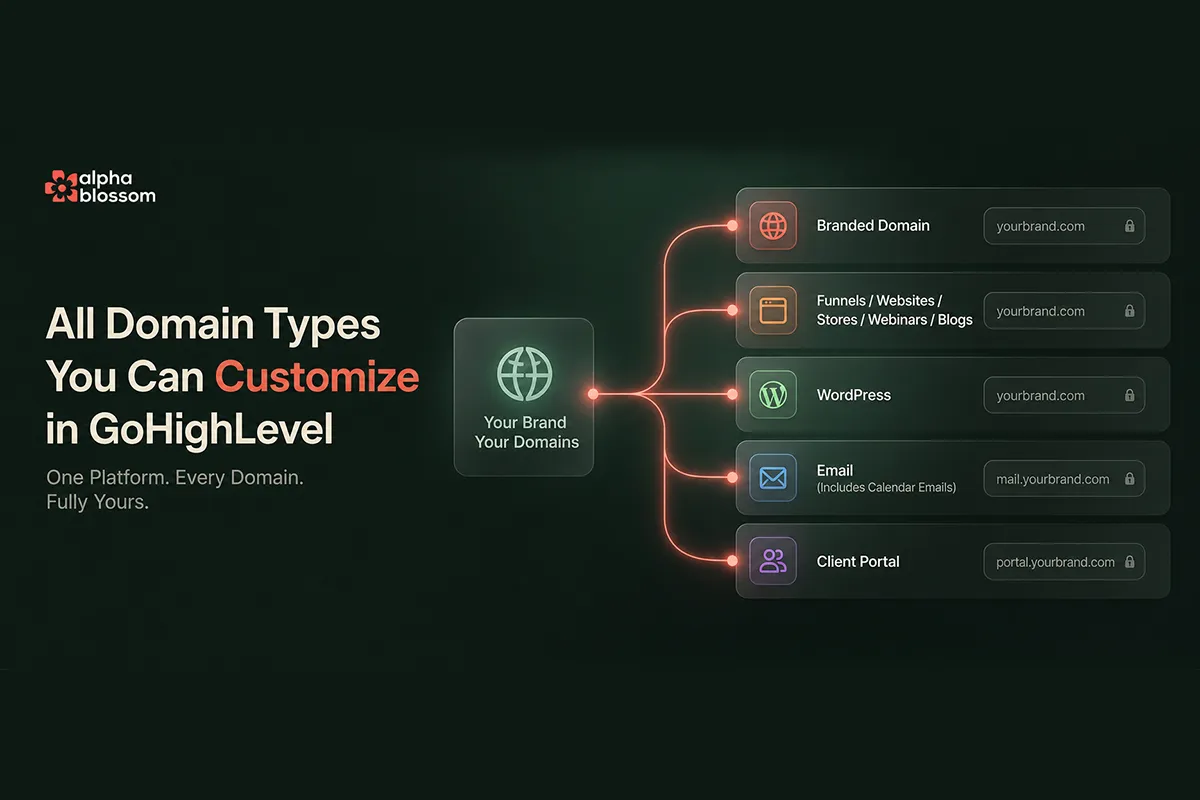
This guide walks through all 5 GoHighLevel domain types from start to finish: branded domain, the main domain for funnels and websites and stores and blogs and webinars, WordPress, email sending, and client portal. I will show you what each one is for, where to set it up, and how to use Cloudflare to handle the DNS records automatically so you do not have to copy and paste a single record by hand. Set this up once at the start of a new sub-account and you never have to think about it again.
GoHighLevel Domain Setup: Complete A to Z Guide
The 5 Domain Types You Can Set Up in GoHighLevel
2. Funnels, Websites, Stores, Webinars, and Blogs Domain Setup
Picking the Right Domain Variant (www vs non-www)
Assigning the Domain to a Funnel, Website, Blog, or Store
When WordPress Hosting Makes Sense
4. Email Sending Domain Setup (The Big One)
Setting the Email Headers (From Name and From Email)
Adding Multiple Email Subdomains
Domain Configuration: Assigning Email Subdomains to Use Cases
Google Postmaster (Optional but Recommended)
Cloudflare Tips That Apply to All GoHighLevel Domains
Use the Comment Field on Every Record
Cloudflare Is Recommended But Not Required
If you'd rather see this in action before diving into the steps, watch the full video walkthrough here or watch "Set Up Every GoHighLevel Domain the Right Way (Full A to Z Walkthrough)" on Youtube
The 5 Domain Types You Can Set Up in GoHighLevel
Before we walk through each setup, here is the lay of the land. GoHighLevel separates domains into 5 distinct categories because each one serves a different part of the platform and each one needs its own DNS records.
Branded Domain (e.g.
link.yourbrand.com) - the domain that appears on shared form links, calendar booking links, and payment links that are not embedded in a funnel or website.Funnels, Websites, Stores, Webinars, and Blogs Domain (e.g.
yourbrand.comorgo.yourbrand.com) - the main customer-facing domain where your funnels and websites live.WordPress Domain (e.g.
wp.yourbrand.com) - if you are using HighLevel's native WordPress hosting, this is the domain that points at your WordPress site.Email Sending Domain(s) (e.g.
mail.yourbrand.com,book.yourbrand.com,payments.yourbrand.com) - dedicated subdomains used to send outbound email with DKIM, SPF, and DMARC authentication.Client Portal Domain (e.g.
members.yourbrand.com) - the address your customers go to for courses, communities, files, and invoices.
You can use a single root domain across all 5 categories by using different subdomains in front (link, go, wp, mail, members), or you can use entirely separate domains if you prefer. The decision depends on your branding setup. For most agency owners and SaaS operators, one root domain with 5 subdomains is the cleanest approach.
1. Branded Domain Setup
The branded domain controls the URL that shows up on shared links from your sub-account. When you create a form, a calendar, or a payment link in GoHighLevel and you click "share link" to send it directly (not embed it in a funnel), that link uses your branded domain. Without a branded domain set up, the link uses whatever your agency's default is (in my case, the AlphaBlossom CRM uses apps.alphablossom.com), which works but does not match your brand.
Where to Set It Up
Go to Settings, then Business Profile. Near the top of the page is a field called Random Domain (or Branded Domain depending on your version). This is where you enter your branded subdomain.
Picking the Subdomain
Use a subdomain in front of your main domain. The convention is link, but share or go work too. For example, if your main website is gobonsai.ai, your branded domain would be link.gobonsai.ai. The reason for the subdomain is that you cannot use the root domain here if it is already in use for your main website, the two would conflict. The subdomain in front gives you a clean separate URL space.
Connecting via Cloudflare
I always recommend hosting your domains on Cloudflare because it is free, fast, and GoHighLevel has a one-click integration. After you enter your branded subdomain, click Continue. GoHighLevel looks up where the domain is hosted and offers to authorize the connection through the host's API. With Cloudflare it usually completes in 20 to 30 seconds. GoHighLevel also natively supports GoDaddy, Namecheap, and Ionos with the same one-click flow.
You can open the dropdown to see exactly which DNS records GoHighLevel will add (a CNAME pointing to HighLevel's branded-link infrastructure), but you do not have to. Just click Authorize, approve in Cloudflare, and wait. DNS changes technically can take up to 48 hours, but in practice it is almost always under 15 minutes.
What You Get
Once authorized, any form, calendar, or payment link you share via the share button uses your branded URL. So if I create a form on the GoBonsai sub-account, the share link starts with link.gobonsai.ai/widget/form/... instead of the default agency URL. Same brand, every shared link.
2. Funnels, Websites, Stores, Webinars, and Blogs Domain Setup
This is the domain customers actually visit. It is what your funnel pages live on, your websites, your storefront, your blog posts, and your webinar landing pages.
Where to Set It Up
Go to Settings, then Domains and URL Redirects. You can purchase domains through HighLevel here, or connect a domain you already own. Click Connect to add a new domain.
Picking the Right Domain Variant (www vs non-www)
This is the one decision that trips people up. When you add the domain, GoHighLevel asks if you also want to add the www version. Best practice is to pick one (either the www or the non-www) as your primary and redirect the other to it. Google and other search engines should only ever see one version, otherwise they treat them as duplicate content.
For most setups, the non-www version (e.g. shibuya13.com) as primary with the www version (www.shibuya13.com) redirecting to it works well. To do that, enter the non-www version as the domain and check the box to also add www. GoHighLevel will configure the www version to redirect automatically.
If you prefer the www as primary, enter www.yourdomain.com as the domain and check the box to also add the root version. Either pattern works, just be consistent.
The Subdomain Workaround
If your root domain is already in use somewhere else (a separate marketing website, an app, etc.), you cannot use the root inside GoHighLevel. The workaround is to use a subdomain. For example, if gobonsai.ai is already pointing at a Webflow site, you can connect go.gobonsai.ai inside GoHighLevel for funnels and websites, leaving the root domain free for the other use. The funnel URL becomes go.gobonsai.ai/funnel-name.
Resolving DNS Conflicts
If the domain you are connecting has existing DNS records that conflict with what GoHighLevel needs to add (common when the domain has been used for other things), Cloudflare will flag the conflict. You will need to log into Cloudflare, remove the old conflicting records, then come back to GoHighLevel and authorize. This is mostly a problem for domains that have hosted other apps before. For brand-new domains, there is nothing to clean up.
Assigning the Domain to a Funnel, Website, Blog, or Store
Once the domain is added, you go into Sites, then Manage Pages, click Edit on the domain, and pick which funnel, website, blog, or store the domain should point to. Each domain can be assigned to one primary destination. You can also set up a custom 404 page here for when someone hits a URL that does not exist, and enter robots.txt rules to control what search engines and AI crawlers can index. We cover the SEO side of this in our guide on publishing AI Studio sites and setting up SEO.
For each individual funnel, you can also override at the funnel level. Go into the funnel settings and pick which connected domain it should use. This is helpful if you have multiple domains in the account and want different funnels on different domains.
3. WordPress Domain Setup
WordPress hosting is an optional feature in GoHighLevel. If you are using it (which I recommend for some use cases, see below), you get a managed WordPress install you can manage directly from the HighLevel dashboard. It includes backups, analytics, plugin and theme management, and PHP version control.
Where to Set It Up
From your sub-account dashboard, go to the WordPress section in the left sidebar. Scroll down to Manage Your Domains. Click Add Domain.
The Setup Process
Use a subdomain like wp.yourbrand.com. WordPress hosted inside HighLevel runs on its own infrastructure with its own database, so it needs a different DNS configuration than your funnels and websites domain. That is why it is a separate setup, even if you are using the same root domain.
Click Autoconfigure. GoHighLevel pushes the records into Cloudflare automatically (a CNAME pointing to the WordPress hosting infrastructure) and issues an SSL certificate. The whole process takes about a minute. Authorize in Cloudflare, wait for the records to propagate, then click Verify DNS Records. All four indicators should turn green.
Setting the Primary Domain
You can have multiple domains pointing to the same WordPress site. The primary domain is the one that shows up by default. Set it from the same Manage Your Domains screen.
When WordPress Hosting Makes Sense
If you are running a content-heavy site with lots of posts, comments, plugins, or anything that benefits from the WordPress ecosystem (membership plugins, LMS plugins, e-commerce plugins), hosting it inside HighLevel keeps everything in one dashboard. If your site is simple landing pages or funnels, the native funnel builder is faster.
4. Email Sending Domain Setup (The Big One)
Email is the domain area where most agency owners get hung up. Bad email setup means your messages go to spam, your sender reputation tanks, and you cannot run campaigns or even basic transactional sends without problems. The good news is that HighLevel automates almost all of it through Cloudflare.
Where to Set It Up
Go to Settings, then Email Services. The top of the page shows recommendations for improving your deliverability, including "create a dedicated domain". Click that link, then Add New Domain.
The Subdomain Pattern
Email sending uses a subdomain like mail.yourbrand.com. The subdomain prefix can be anything (mail, send, hello), but the root has to match the email address you want to send from. So if you want emails to come from [email protected], the sending domain is mail.yourbrand.com. The mismatch between the subdomain prefix and the from-address local part is normal and does not cause problems, but the root must match.
What Cloudflare Auto-Adds
After you click Add and Verify, GoHighLevel connects to Cloudflare via the API and adds about 5 to 6 DNS records: DKIM, SPF, DMARC, and a few CNAMEs for the sending infrastructure. In the past you had to copy and paste each one, which was the single biggest source of email deliverability errors. The one-click flow is a huge improvement.
One note: DMARC sometimes gets added with p=none as the policy, which is the most permissive setting. For improved deliverability, you may want to update this later to p=quarantine or p=reject once you have confirmed your sending is working. We have a separate guide on GoHighLevel email templates that covers the email setup side beyond just domains.
Verifying the Domain
Verification can take a few minutes. Click Verify Domain. If it shows pending, wait 30 seconds and click again. You may need to click 2 or 3 times before everything turns green. Once all records show as verified and the SSL certificate is issued, the domain is ready.
Setting the Email Headers (From Name and From Email)
This is the part most people miss. Click the three dots next to your verified domain, then Set Headers. Enter the From Name (e.g. "GoBonsai") and the From Email (e.g. [email protected]). The From Email's domain MUST match the root of your sending domain. So if your sending domain is mail.gobonsai.ai, your From Email must end in @gobonsai.ai. If the roots do not match, you will have severe deliverability problems.
Adding Multiple Email Subdomains
One of the most useful patterns is setting up separate sending domains for different use cases. I typically set up four:
mail.yourbrand.com - general marketing emails, one-on-one conversations, bulk sends, campaigns
book.yourbrand.com - calendar booking notifications, appointment reminders, confirmation emails
payments.yourbrand.com - payment receipts, subscription notifications, refund confirmations
portal.yourbrand.com - client portal notifications, course updates, OTP emails
Why split? Two reasons. First, if one sending domain gets flagged for any reason (a deliverability hiccup, a bad batch of contacts, an over-aggressive send), the other domains keep working. Your payment receipts and calendar reminders are not interrupted by a marketing campaign issue. Second, splitting reputational risk across multiple sending identities is best practice for any business that sends at meaningful volume.
Set each one up the same way: add the subdomain, click Add and Verify, authorize in Cloudflare, set the headers. Each one needs its own From Email matching the root domain.
Domain Configuration: Assigning Email Subdomains to Use Cases
After setting up multiple sending domains, go to Email Services, then Domain Configuration. This is where you tell HighLevel which sending domain to use for each type of outbound email:
One-on-one conversation → mail
Bulk → mail
Campaign → mail
Calendar → book
Payments → payments
Client portal → portal
Client portal one-time OTP → portal
You can also split traffic across two domains for the same use case (50/50 load balancing), which is useful for high-volume senders. For most agencies, one domain per use case is enough.
Google Postmaster (Optional but Recommended)
HighLevel has a Google Postmaster integration that shows your domain reputation, spam rate, and authentication results directly inside the dashboard. Connect it from the Email Services page. Even though there was some uncertainty about Postmaster being phased out, as of mid-2026 it is still available and worth connecting.
5. Client Portal Domain Setup
The client portal is where your customers go to access courses, the community, files, and invoices. If you are running an AlphaBlossom-style free community or a paid course, this is the URL members use.
Where to Set It Up
Go to Memberships, then Communities, then Settings. You will see two domain fields: the platform URL (the default HighLevel-provided URL) and a custom domain field.
Cleaning Up the Platform URL
The default platform URL is something garbled like random-string.app.clienthub.net. First, change the platform URL prefix to your brand: yourbrand.app.clienthub.net. This is a free upgrade from the random string and looks much cleaner.
Adding the Custom Domain
The custom domain is your branded URL: members.yourbrand.com. Add it, click the button to add the domain, and Cloudflare adds a single CNAME pointing to clientportal.ludacris.cloud (HighLevel's client portal backend). Authorize in Cloudflare and wait.
Memberships and client portal domains tend to take longer to verify than other domain types, often 10 to 15 minutes for the full propagation. Be patient.
Cloudflare Tips That Apply to All GoHighLevel Domains
Use the Comment Field on Every Record
By the time you have set up 4 email subdomains plus a branded domain plus a websites domain, your Cloudflare DNS records list is dense. To stay organized, click into each record GoHighLevel added and add a comment like "GoHighLevel CRM email setup" or "GoHighLevel branded domain" or "GoHighLevel WordPress". This makes it trivial to find a specific record later when something needs to be edited or debugged.
Cloudflare Is Recommended But Not Required
GoHighLevel's automatic DNS configuration works with Cloudflare, GoDaddy, Namecheap, and Ionos natively. If you use a different DNS host, the auto-configuration will not work and you will need to add records manually. For agency owners managing multiple client domains, switching everything to Cloudflare pays off quickly.
DNS Propagation Realities
The standard "DNS changes can take up to 48 hours" warning is real, but in 2026 it almost never plays out that way. Most propagation is under 15 minutes. If you are seeing changes take longer than an hour, double-check your records, your DNS host status, and your Cloudflare cache settings.
The Recommended Setup Order
If you are setting up a brand new GoHighLevel sub-account, do the domain setup in this order. Each step depends on the previous in subtle ways, and this order gets you to "fully configured" with the least back-tracking.
Business Profile first. Before any domain setup, fill in the Business Profile settings including business legal name, EIN, and authorized representative. This data flows into A2P email and texting compliance.
Branded domain. Set this up second so any shared links you create during the rest of setup already use your brand.
Funnels and websites domain. Add the main domain that your customer-facing pages will live on.
Email sending domain(s). Set up at least
mail.yourbrand.com, ideally alsobookandpayments. Configure the headers. Assign in Domain Configuration.Client portal domain. Add
members.yourbrand.comif you have courses or a community.WordPress domain. Only if you are using HighLevel WordPress hosting.
Once this is done, you are ready to build. Everything you create inside the sub-account, from the first funnel to the first campaign to the first calendar, uses your brand consistently.
Why This Is Worth the Hour It Takes
Every domain you skip is a piece of the customer experience that defaults to HighLevel's branding instead of yours. Every email subdomain you do not set up properly is deliverability risk. Every DNS record you copy and paste manually is a chance for typos that you will be debugging weeks later. The one-time setup is dramatically easier than fixing each piece individually after the fact.
Do the whole thing at the start of a new sub-account. Block out an hour. Use Cloudflare. Follow this guide section by section. When you are done, you never have to think about domains again for that account.
Related Links
Related Videos
Video Transcript
[0:00] Hey! Guys and Gals. In this video I'm going to show you how to set up your domains inside of your GoHighLevel account. If you're an AlphaBlossom CRM member then this is going to apply to you as well. Now it's a little confusing because there's several different places where you set up your domains. And what this does is it allows you to just have your own custom domains instead of using like in our case if you're an AlphaBlossom CRM member. Your domain might be with your own domain. So I'm going to show you how to set those all up. There's several places where you can set those up. So inside of your HighLevel you have several different places to set these up.
[0:33] And I'm going to cover them all one at a time. the domain that you use if you're going to be sharing forms payment links. And things like that directly. Instead of embedding them into a page. So. I'm going to show you how to do that. So that your branded domain would carry your own brand. Instead of using our AlphaBlossom. Or depending on whatever agency you're on. Instead of using their domain. Next up is going to be So you can set up those front facing domains. So that when people go to visit those live pages they're going to see your domain instead of just generic domain as well. I'll show you how to set up your WordPress domain as well.
[1:17] so that that site has its own custom domain. And email deliverability is super super important. So I'm going to show you how to set up all your email domains including the DNS records that go along with it. It can be a little bit confusing. I'll show you some tips if you stay to the end on email too. in terms of how to improve your deliverability. Setting email headers and things like that. And then within emails you can also customize your calendar link. So when your calendar notifications go out you can have a specific email link for that. So it could be like (calendars.alphablossom.com) or whatever you want to use. And then finally if you have your own private communities memberships.
[1:56] things like that. I'm going to show you how to set those up as well. let's just jump straight into it. If you're not already subscribed to the channel make sure to click that subscribe button. Like this video. and follow us for more. And if you are new to HighLevel or if you're considering it. We've got a 30 day free trial link down below. along with the bootcamp. And also I've got a free community down below. You can join if you want to follow along and learn more about HighLevel. have questions and things like that. you're welcome to post in our community. So let's jump into it. and I'll see you on the other side. So if you go into Settings.
[2:37] And you go to just your default Business Profile. You see a field here that says Branded Domain. Now let me go back out and show you what that does. So we're going to look at this site. I'm going to go to Sites. This is just one of my demo sites. I'm going to come to forms here. And you see I've got some different forms here. So if I look at this form. And I go to preview. Or let's say integrate. Share it. So I'm going to copy the link here. And let's just take a look at that link. You can see the link is (apps.alphablossom.com) So this is my CRM link. So everybody that's a member of my CRM agency.
[3:17] Is going to have this as their default branded domain. But it'd be a much better experience if you had this as your own domain. So that it's kept in line with your branding. So that's what we're going to customize with the branded domain. So we're going to go back out to the site that I'm working on. go back out to the site that I'm working on. And that's going to be GoBonsAI. Which is my social media app. And so I'm going to come in to settings. And right away will be in Business Profile. And I'm going to just add for mine it's going to be just (link.gobonsai.ai) So basically when someone shows a form or a payment it's going to start with the (link) But the (gobonsai.ai) is going to be my own brand.
[3:52] Which is what my website domain is. So let me just come to this website here. And just show you. So this is my main website. (gobonsai.ai) this is my beta waitlist here. For half off for the first hundred members. But I want to keep the main domain the same. But obviously I can't use (gobonsai.ai) because I'm using that for my website. So adding the link infront of it allows me to use my root domain allows me to use my root domain. And then have this section here. Specifically for my branded domains here. You got some information here that tells you. We're just going to add the domain. And I recommend having everything inside of Cloudflare.
[4:27] For some reason I’ve got a lot of videos talking about that. So we'll get into that here. But if you. I just come in here and click Continue. It's going to automatically connect to my Cloudflare. And so now you can see it's retrieving my record. It's looking up my Cloudflare connection. And then it's going to say Authorized Domain. You can actually open this and see what records are going to be added. (ludicrous) You don't need to worry about that. We're just going to authorize the domain. It’s going to go to Cloudflare and tell me it's okay to authorize. So I'll click that and say yes. And then it says it could take up to 30 seconds.
[4:57] To do this. So now one point about DNS records. Technically they can take up to 48 hours. To work through the system. Typically it's going to be anywhere from instant to 10 15 minutes. If you're going over 10 15 minutes. I would just double check your settings. Maybe you've missed something. These days I never see anything taking more than 15 minutes or so. An hour to go through max. So. Yeah. I would just keep an eye on that. So now you can see I've got the (link.gobonsai.com) If I want to modify it I can. But now if I go create a form or a payment link or something like that. It's going to use this link instead of the AlphaBlossom default link for the CRM here.
[5:34] So. That’s how you set up your branded domain. Just to keep it align with domain. I recommend taking a few minutes to do this. As one of your first priorities. So now I'm going to show you how to set up your domain for funnels and websites and things like that. And now we're going to go to Domains & URL redirects. You’ll see you have the option to purchase domains inside of our CRM. But we don't need to purchase. We just want to connect our existing. And you can see down here we have an external domain already. For our Cloudflare that's working for the (link.gobonsai.ai) Instead of managing this we want to just connect a new domain.
[6:04] Because we want to connect a something for our funnel. So we're going to click connect. It’s going to bring you to this screen here. Where you can decide which domain you want to set up. And so we want to do funnel website store blog and webinar. So we'll just say connect there. Now I am using (gobonsai.ai) somewhere else. Because it's tied to my app with database and things like that. But just want to show you how you would set this up if you're going to use this. So we’re going to say let's go (shibuya13.com) This is the domain we're going to use here. And then it's going to ask you do you also want to add (www) So what happens is the best practices is to have all traffic route to either (www) version or (non-www) version.
[6:46] So I'm going to use the the (non-www) version. And I'm going to check this box so that it sets up the records. In case somebody types (www) But this is going to automatically forward to the (non-www) version. So Google is going to only see the (non-www) version. So you want to check this box. And if you prefer to have the (www) show. Then in here you would come and say (www.shibuya13.com) And then you can check the box to also add the route version without the (www) subdomain in front of it. So for me I'm going to do it without (www) Okay. Now I'm going to click continue. And it's going to take me over into Cloudflare.
[7:25] To authorize this. So let's just make sure we're good. And you can see what records are added. So can I add an A record. And then it's going to add the (www) here. And that's going to forward to the A record. So we'll just authorize that. And click authorize. And then it would just take a minute. To authorize this. And then we'll be good to go. Now you can add unlimited domains also. So if you have a bunch of domains you want to use for different funnels or things like that. You can do that. I'm going to show you one other option that you can do here. In my case I'm using (gobonsai.ai) as my main website domain.
[7:57] But there's another option we'll show you in just a minute. Now once your domain is added now you can select is this for funnel website store blog or webinar. And then you can come in here. And if you have a funnel here it'll show you which funnel so you can connect it so that this will be the main domain will take you to this funnel. You've got additional options of 404 error page. Which I recommend creating your own custom page. We've got some other videos on that. And then just proceed to finish. So I don't have anything in here currently. Now I'm going to show you one other thing you can do. I'm going to connect a domain.
[8:25] And I'm going to do another funnel website. So (gobonsai.ai) This is going to allow me to use this domain inside of my CRM. For funnels blogs. And things like that. If I want to. And then still preserve (https://gobonsai.ai) for my main website. And then (app.gobonsai.com) for my app. So it's just a workaround. If you're already using your domain somewhere else. And you want to still be able to use this here. Having the sub domain is a great way to do that. This will just take a minute. And this will be done and ready to go. When this is done I'm going to flip into another account. And just show you what it would look like here when you go to manage pages and things like that.
[9:05] So you'll have a better understanding of that as well. All right. So I can proceed to finish. And I could select this for other things. So now you can see here I have both of these (link.gobonsai.ai) (gobonsai.ai) These are subdomains. So for (gobonsai.ai) I can come in here and edit this. I can say which page I want. which website. And then here funnels or other so. I can assign this actually to funnels. Blogs. All of that stuff. So now that it's set up. It”s a little tough to tell by looking at the labeling. But I can assign this to any of those categories shops blogs. Any of those things. So now we're going to just switch over really quickly to another sub account of mine.
[9:48] And now you see I've got some different domains here. So if you come in here to manage and now you see I've got my website here. And you go to edit that. This is where you can select which page you want to be the main page for this domain. So if somebody comes to (gobonsai.ai) I can say what page I want them to land on. And then also I can have custom for a 404 page here. So if somebody types in the wrong URL I can have a page that's going to redirect them to where I want them to go. And you've got a section where you can enter your robots.txt code. So if you don't want AI scanning the site or you don't want certain search engines or whatever you can can block certain pages from being indexed.
[10:25] Things like that. So that's through these set ups here as well. So that's it for the funnels and stores. Now if you go to let's say you go to Blogs. And you've got a blog here. And now we're inside our blog. And I want to go to settings. So this is where you can select the domain. So once you have the domain you can come in here and select it. And with blogs I can use the same blog. So if I'm using (alphablossom.com) for the website part of here I can also use it for blog because the ending is going to be different. So it is integrated to be a seamless integration. If you're using AI studio you can't use the same domain in multiple places.
[11:00] But with blogs they have it worked out. So it will be like a seamless integration as an extension. So just to show you you can select these for different parts of the apps. Again there's a lot of different moving parts here. So feel free to leave a comment. if you have any questions. Or reach out. We'd be happy to help. But this is really good overview to help you get started. So that's it. For funnels websites. Again if you go to funnels. And you click into any one of your funnels. Same thing. You just go to settings. And you can select which domain you want to use here. So you can see I've got (go.alphablossom.com) I can do the (alphablossom.com) So you can select whatever domain you want to use here as well.
[11:35] So it's just the same throughout the platform. Every one of these front facing parts of the app allows you to select the domain you want to use. And next up we're going to set up the WordPress domain. So if you come in here. I'm going to go to a account where I have a WordPress set up. WordPress is an optional feature that allows you to just manage your WordPress site from inside of your desk directly. It's very convenient. Because it allows you to update your site. It allows you to do backups. Analytics. Check out your plugins. Themes. All kinds of stuff. So very cool. And then down here if you scroll down. You've got your Mange your domains.
[12:09] So here you can add a domain. So I'm going to add this domain. And I'm going to say. (wp.gobonsai.ai) And then auto configure. So then this is going to do the same thing. It's just going to get the SSL certificate set up. Very important for your security. But that's all done automatically. It's going to connect the records and push them into Cloudflare. Just like we did with the websites. But since your WordPress site is a completely different beast it's hosted on its own. Has its own database. Things like that. Then it has a different configuration than the normal domain setup. So it's separate than your normal funnels. Websites. Blogs. And that type of thing. I'm just going to pause the video.
[12:50] And this will go over pretty quickly. But I'm just going to pause the video. Save some time. Okay. So now it's moving. So now it's on to the next step. Setting up your domain. It just took about a minute or so. So it's not too long. And then you can kind of see down below it's a little grayed out but the records are going to be adding just a seem pointing to the WordPress site. And then you can see what records will be added here. Authorized domain. Authorize that. And the same message could take up to 30 seconds. Before these get pushed through. So this will span for 30s. And then once this is up and running once I click this it's just going to allow me to go to my WordPress site.
[13:23] I'm not going to really show you the demo. My WordPress site is actually used for our help videos inside of here. I'll show you them inside the dash once this is done. But I've got a some code set up to block it. So that anybody outside of the app cannot be the site. So let's just go and open up a tab. And then see if this is showing yet. And I should see a warning saying you don't have authorization. Yeah. So this is my site. Basically you don't have authorization to see this. Inside of the app. I've got these help videos. That's powered by WordPress website. And so. So this would be the WordPress website video is like a jump link.
[14:01] So that's pretty cool. But. Yeah you can see we've got quite few videos in here. For our members. And. So let's just go back to the WordPress. Just to give you an overview on that. So WordPress. Manage websites. Now you can see I've got the site added here. (https://wp.gobonsai.ai) And if you want to delete these you can. So I'm going to come in here I'm going to delete. This was a test I was doing below. Going to delete that. And I'm actually going to delete this one as well. But before I do. I just want to make sure everything's set up. So you can understand how it works. So the SSL is pending. We need to make sure that's working.
[14:35] So let's click verify DNS records. And you want these to be green like they are here. So now everything is working as expected. And then if you come in here you can set this to be your primary domain. So with WordPress. you can have multiple domains pointing to the site. And you can set a primary one. So what's going to be the main domain for this. Reconfigure your DNS settings here. Or you can just delete it. Which we're going to do in this case Since we're not really using that. So. If you're WordPress consider moving it inside here. Inside of your CRM. It just gives you a really convenient way to manage everything. So we've got advanced settings.
[15:13] Cache management. Debugging. You can adjust your PHP version of your site. All kinds of cool stuff. Access your PHP admin. So yeah. It's super cool. But that's how you would set up the domains. Once you get the WordPress site. All set up inside of your CRM. Next up is email. This is the big one. This is where people really get hung up. I see all the time people posting about email deliverability. Being poor. And things like that. A huge part of it has to do with your email configuration. HighLevel makes it super easy. So we're going to go into settings. We're going to go to We'reEmail Services. And. It's got some messages here on how you can improve it.
[15:45] And saying create a dedicated domain. That's exactly what we're going to do. So I'm going to just click that. It's going to take us in here. To add a new domain name. So I'm not using really. This is a brand new domain here. So I'm going to just set up my basic email. I’m going to call it (mail.gobonsai.ai) So the key is anything that's sent through the app is going to be sent from (@mail.gobonsai.ai) Still going to work like normal. But behind the scenes it's going to show that. Google. Outlook. All those are going to respect that because it's matching my actual email domain. So it's not an issue just by adding the sub domain.
[16:20] But I need to have a sub domain because I'm already using it (@gobonsai.ai) So I need to have different version of that to allow the CRM to send email on behalf of my domain. But this part has to match. Otherwise I can have a lot of problems. So I'm going to actually set up a few different ones. So the first one is going to be my general one that's mail. And then we're going to add and verify. And then it's going do the same thing. It's just going to say connect to Cloudflare. It's going to find the Cloudflare. And it's going to automatically add my records. Now this is nice because you have about 5 or 6 different DNS records that you have to add.
[16:50] In the past you'd have to copy and paste each one. There was a lot of room for error. Now it just automatically does it. So. it's really nice that it allows you to do that. And. You can see what records are going to be added. There's quite a few of them here. They're all important. The dMarc is very important these days. And it's added as none. I think recently we've had this change. Where it has to be a value here. So we're going to update that later. But I just want you to be aware that if it says (p=none) is none when you're watching this then you may want to check that and see if you have to actually add a different value here.
[17:18] But it's going to add all these records for us. These are all the ones that are important for deliverability. We have our domain key here. We have our SPF records up here. So this is SPF. So it has all these for us. It makes it super easy. Just a couple clicks of the button. You can see all the values here that it's adding priorities and things like that. So it's really amazing that it does that for us. Like I said in the past we had to copy and paste all of these. And so now we want to just give it a couple seconds. Just take a look at this. You can see these are all not verified.
[17:45] So we want to click Verify Domain. And it's still not verified. So it's going to take a little bit of time here. And let's just go back to the previous. Go back to dedicated domains. You can see it's been added here. We want to verify it. So let's just try that again. You can see some of them are verified. Like I said it takes a little time to work through. These are usually pretty quick. But I've seen the emails a little bit longer than domains sometimes. But let's just try to verify again. And still not there. So we're going to verify it again. Now you can see everything is verified here. But we still have to click the final verify.
[18:18] So we should be approved here. Okay we're all good to go. Now you can see the SSL is issued. So that's it. This is our email domain. Now the important thing I wanted to show you is if you click on the three dots here. When I go to set headers. And this is where we're going to say "GoBonsAI" So this is going to determine throughout the app anytime an email is sent from this domain. Who it's going to show as it's coming from. So when you look at any domain you see who the emails from. You want it to be your friendly email. So I'm going to say ([email protected]) And again it's important that this last part has to match your domain that you've set up.
[18:53] So if you have something different you're going to have a lot of problems with spam. Or maybe your emails don't even get through. So we're going to save that. And so again what that does is the header any email that's sent coming from (mail.gobonsai.ai) the (mail.gobonsai.ai) is going to show behind the scenes. But when people see who the emails coming from it’s going to show it's coming from ([email protected]) So that's what we want. And then whatever name you want people to say this email is coming from this is where you set that. It's very important to make sure that you do this for consistency. And so the other things we can do is I'm going to add another domain for my calendars.
[19:26] And I'll show you where we can set that up here in just a minute. So here I'm going to just say (book.gobonsai.ai) It's the same process. But in a minute I'll show you why I'm setting this up So you can have a better understanding of how you can set up your emails. So you can have inside of our CRM you have calendars. People can come and book appointments with you and things like that. And those calendars set out notifications. You know “Hey you book an appointment” “Hey your meetings coming up in an hour” “Your meeting is coming up in five minutes” Whatever you want to Wset up for notifications. And so we can customize where those emails are coming from.
[19:58] And by saying book. And that's just kind of in people's minds that's a calendar type of term. So let's see if we can verify these first. Again this will just take a moment. So now you can see I've got the (mail.gobonsai.ai) and the (book.gobonsai.ai) set up here. So still not verified. Let's just come back and wait until these are ready to go. One other thing that’s interesting is it says you can connect Google Postmaster. I've got some videos on how to do this as well. So you can actually view your stats here. I was under the impression Google Postmaster was being discontinued and phased out. But it looks like it's still available as of right now.
[20:32] So check on that. But if it's still around definitely connected in here. Because then you can come in here and you can keep tabs on your spam rating and things like that. So that's a very helpful way for you to monitor your domain sending. So this one's good here. Now we can go to domain configuration. And this is where we can select the calendar domain. So I'm going to say (book.gobonsai.ai) So for all the calendar links it's going to use (book.gobonsai.ai) I also want to go back and set up the headers here. So for payments I could also set up a separate one which would be payments or (secure.gobonsai.ai) You guys understand so I don't want to take the whole video to set up all of these.
[21:09] But for one on one conversation I'm just going to use (mail.gobonsai.ai) For bulk. I'm going to use (mail.gobonsai.ai) Same for campaign. So these are just kind of general emails that are sent out. So I'm going to use (mail.gobonsai.ai) For client portal domain. We're going to set that up separately in the next section. So I'll come back and do this later. I'm just gonna leave it blank. And then also you have client portal one time OTP. Which is one time notification so people can get those. So we'll set that up later as well. So that's that. And then I'm going to come back here and just want to do the last thing. So I'm going to come here.
[21:38] And I also want to do my headers. It's very important here. I'm going to say again "GoBonsAI" And I'm going to say ([email protected]) So again this is just who is showing it’s from. You could say “Book here if you wanted to” Or whatever you want to say. But I'm just going to keep that part consistent. But the back end is going to always show it's coming from (book.gobonsai.ai) And then the nice thing about doing this is let's say I wanted to split this. So I have both of these here. I can split the risk 50/50 so that let's say one of these domains gets flagged for another reason. Then it will start using the other domain in here.
[22:09] So it's kind of a nice way for you to load balance your risk. If you want to do that. If you're sending a lot of emails. For me right now is just basic. So I don't need to worry about that. And then so the remaining thing would be for me to set up a payments link. Actually I'll just do that now. Just for those of you following along. So we'll come in here for payments. And what's a good link for payments? We'll just call it (secure.gobonsai.ai) Yep. We'll just say payments. And then add and verify. So again these are just for the emails domain side of things. So for example he payments on the front end would use the ([email protected]) Or if I have an embedded in a funnel it's going to use that domain.
[22:47] What we're setting up now is strictly where the emails are coming from for the different parts of the app. So it can be a little confusing. But. And then the other thing I'll show you is if we go into Cloudflare. And we go back to domains. And we go in to (gobonsai.ai) Into our DNS records. You can see we've got a ton of records added here now. It's all the DMARCS but for different things. So here's (_dmarc.book) Here's (_dmarc.mail) (_dmarc.payments) So it's adding all these different records for all these domains. One thing I like to do is come in to these and comment. It's a little bit of extra work. But if you go to record attributes.
[23:27] You can say. AlphaBlossom CRM email set up. So just the reason I do that is when you've got a bunch of records here and you need to edit something or find something. It's really confusing to try to figure out what are all these different records for. So if you can just come here and look at the comments. You can easily say “Oh these are my Google Workspace emails” “This is my AlphaBlossom CRM set up. It's just an easier way for you to quickly find what you're looking for. And get those things fixed. So let's come back here. And verify this again. And it's still pending. So while we're doing that I'm going to just set the headers here.
[24:03] So this is going to be "GoBonsAI" ([email protected]) But this is really it. So if you're comfortable with this you don't need to watch the rest of the video. But just going to finish setting these up now. Just so you can see the whole picture. And so if we go back to the main configuration. We can see now for payments. I've got payments here. So now any emails coming from payments are going to be sent from this domain here. It also allows it to keep it separate. So if I'm sending a bunch of emails through (mail.gobonsai.ai) And they get flagged as spam my payments email are still going to go through. So those are very important.
[24:39] So it's really good to have that separation here. For client portal. I'm just going to set up this last one. So let's just go back and do one more. So I'm going to say Add Domain. I'll say (portal.gobonsai.ai) It’s good. So we can verify. And. You know what I'm setting up the headers. I could have who the emails from. Name different. Or even the instead of ([email protected]) I could have something else. So if I have a different email set up I could use that instead. The key is the domain has to match (gobonsai.ai) has to be the same for all of these. Otherwise you can have some serious problems with deliverability And we'll authorize these.
[25:19] Verify. We have to come back one more time. While we're doing that. I'm just going to set up the headers here. So I'm just going to keep it consistent. But you could say (Members @ GoBonsAI) if you wanted to. And then you could also do if you had a email like ([email protected]) I if you had the members email set up. You could do that. But I'm just going to keep it as ([email protected]) Everything's consistent. Save. And then we're going to come in here and verify this. Everything's verified. We are good to go. Oops. Didn't quite go through. So we're going to give it one more round probably. So let's see. Let's try it again. And we're good to go.
[26:04] So everything's got the SSL issued. You can see they've got warm up. So it kind of tells you right now this is just a visual. So it just kind of tells you you don't want to just come in here to a brand new domain and send out 10,000 emails in one day. You want to slowly warm it up the first few days. First couple of weeks. And start building up to your email limit. And then I'll just go back to configuration. And then I'm just going to select portal here. And then for my notification that's also going to be coming from portal. (gobonsai.ai) that's it. Everything's done. In terms of email. Now you're ready to start sending emails through the platform.
[26:39] And there's different settings on syncing and things like that. So this video is just on setting up the domains. Then we come out here. You can see you've got different things like reply. And forward settings. You can see your email analytics Has a risk assessment as you start sending. Also tells you about issues with bouncing delivery rates and things like that. And then this is where you can set up your Google postmaster. So you can view that inside of here. Instead of having to go to another app to view that. So that's it for emails. It's a little overwhelming. But as you can see I set up four different email setups here. And just maybe 15 minutes or so.
[27:15] So you know that that's me explaining and things like that. If I was really just flying through this probably 5 or 10 minutes to get the whole thing set up. So it's very straightforward to do. Very very important to know if you're going to be sending emails through the CRM. Okay. And the last domain we're going to set up is going to be client portal. So if you have courses. If you're going to have a community. for example I have AlphaBlossom community here. This is a free community. You're welcome to join. You can go to (members.alphablossom.com) And I just help people. HighLevel support my members. And it's open to anybody. Free to join. You can post in here.
[27:47] I'm just posting stuff all the time in terms of updates. Valuable tips and things like that. So we're going to show you how to set up this domain. But this also is part of a greater portal. Where you can come in here. And you can take a course. you can view depending on how it set up. You can view files here you can view invoices and things like that. And this is being there's a new version is coming out. Which is going to be a lot more customer friendly. So we're going to show how to do that. So we're just going to go into membership. Communities. And settings. And then we're going to set up our domain.
[28:18] So you can see I already got a temporary domain here. Which is this is garbled information. So first thing I'm going to change that to (gobonsai.app.clientclub.net) So we're going to update that. This is kind of the default platform URL. So you can see (gobonsai.app.clientclub.net) It's a lot cleaner than what they provide you. So I recommend changing that. We're also going to set a custom domain. So we're just going to go to (members.gobonsai.ai) And add the domain. Just like the other ones. We're going to just let Cloudflare connect directly via the API. So there's really very little press to do here. And. Once this is set up we've got our memberships set up. Everything is good to go.
[29:03] And our platform is completely set up. And ready for business. So once again we're just going to authorize this in Cloudflare. It's going to add just one single record which is members. In the CNAME. It tells you the value is (clientportal.ludicrous.cloud)) So that's the GoHighLevel’s back end value where it's going to be pointing. and that's it. So now we can go to (members.gobonsai.ai) it's going to take a little bit of time to work through the system. But once it works through then we'll be able to see this here. I've noticed the memberships It does take a little bit longer. So for me it's been 15 minutes. Usually before this message goes away. But it could be a lot sooner than that.
[29:41] But I'm confident it's set up properly. So I'm not going to spend any more time on this. And then the one other thing to show you is if you refresh this page. Again this is where things can get really confusing. So now I see members here. So again you can just come in here. I'll go through and do this after the video ends. But you can come in here and say AlphaBlossom CRM Membership Portal. And that's it. So now you can find that very easily. If you need to find your membership portal you've got that record in here. You got that comment. So right here easy to find. Easy to set up. So that's it.
[30:14] That is the last of our domain set up. Now you are ready for business. You've got all your domain set up. So I personally recommend even if you're not using them right away. Just come in here in one setting. Get them all set up. And then you don't have to worry about doing it again from now on. Once you set something up you can just pick which domain you want to use and you're good to go. Alright! Guys and Gals. That was little bit longer video than normal. But this is super important to make sure you get these set up right. Particularly the email domains. That's a big hang up for a lot of people.
[30:41] And you may think you get them set up right. But if you don't you're going to have problems with your emails going to spam. It's going to be super frustrating. It's important to get this started right off the gate. So hopefully you found this video helpful. And I would really recommend just sitting down and doing these all in one go. Getting them all set up. If you just go through it'll probably take you 15 minutes 30 minutes max. To just set up a handful of domains. Unless you're setting up a bunch of them. And it's super easy. And once they set up they're done. Now you can just pick them as you go along and add new things to your CRM.
[31:10] So again if you're not already subscribed to the channel just make sure to click that subscribe button down below. Like this video. Leave a comment. And I will be happy to reply. You've got my link down below. where you can get a 30 day free trial for GoHighLevel along with a free bootcamp. To get you up and running quickly. also you've got my free community down below so you can join there. And I'm happy to support you inside of there as well. And I will see you in the next video.