

Dynamic Text Replacement in GoHighLevel: Setup Guide
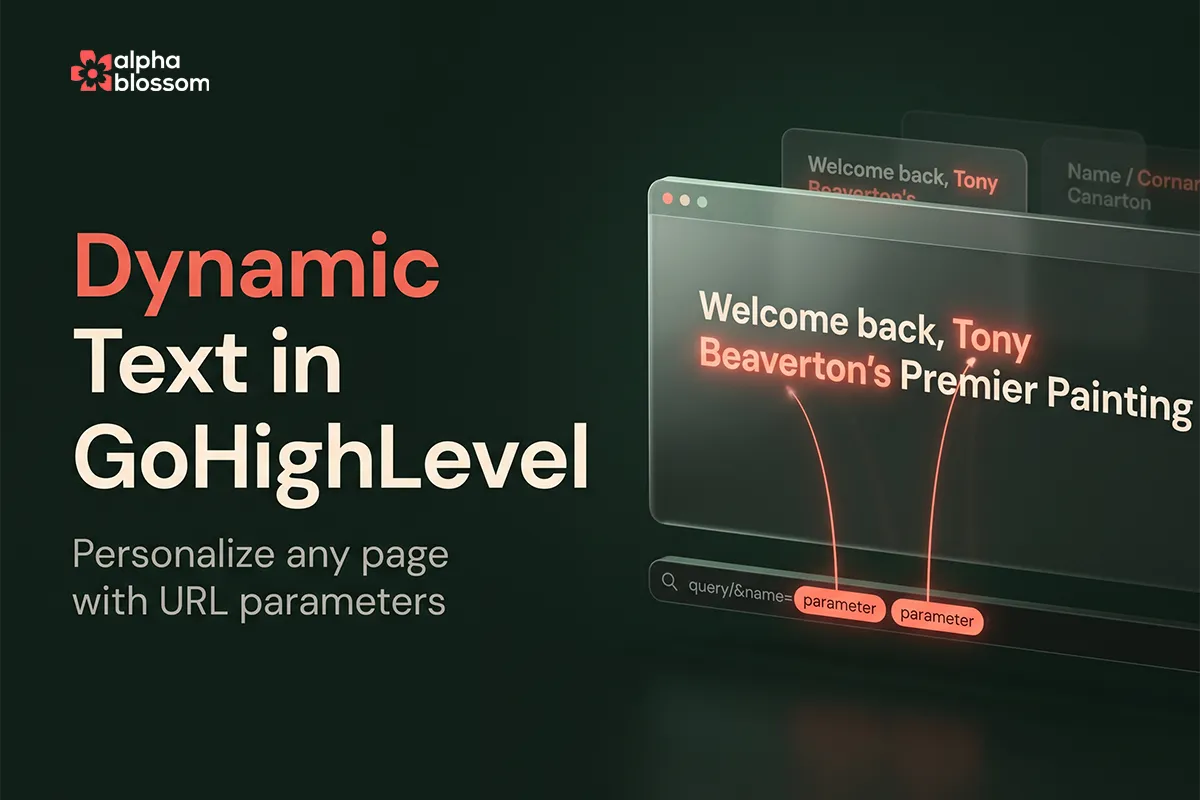
Dynamic text replacement in GoHighLevel is the difference between a landing page that says "Portland area's premier painting" to everybody and a landing page that says "Beaverton's premier painting" to the person who actually lives in Beaverton. GoHighLevel just added a URL Parameter option to the custom values menu, and it turns any text element on a funnel or website page into something that rewrites itself based on the link the visitor clicked.
The idea is simple. You add a little bit of extra information to the end of your URL, the page reads it, and it drops that value straight into your headline. Send an email to your list and every person can land on a page that greets them by first name. Run a campaign into a service area and the page can call out that exact town. It is a small feature with a big effect on how personal your pages feel.
In this guide I will cover what URL parameters actually are, how to set dynamic text up on an existing element, how to build a personalized welcome message from scratch, and how to wire it into a GoHighLevel email campaign so the contact's own first name and city get passed through automatically. Everything here works the same whether you are inside your AlphaBlossom CRM or a standard HighLevel (GHL) account.
Dynamic Text Replacement in GoHighLevel: Setup Guide
What Is Dynamic Text Replacement in GoHighLevel?
How URL Parameters Work: The Question Mark and the Ampersand
How to Set Up Dynamic Text on an Existing Element
How to Build a Personalized Welcome Message From Scratch
The One Limitation Worth Knowing
If you'd rather see this in action before diving into the steps, watch the full video walkthrough here or watch "Personalize Any GoHighLevel Page With URL Parameters (New Setting)" on Youtube
What Is Dynamic Text Replacement in GoHighLevel?
Dynamic text replacement lets a text element on your page display a value that came from the URL instead of a value you typed in the builder. You pick a parameter name, you pick a fallback for when the parameter is missing, and GoHighLevel handles the swap the moment the page loads.
Two examples from the video make it concrete. A painting company headline that normally reads "Portland area's premier professional interior, exterior and commercial painting" becomes "Beaverton's premier professional..." when the link carries a city value. And a plain "Welcome back..." heading becomes "Welcome back Tony" when the link carries a first name. Same page, same builder, completely different first impression.
This is the piece that was missing from GoHighLevel personalization. Merge fields have always worked inside emails and SMS, where the system already knows who it is talking to. On a public landing page there is no contact record yet, so the URL is how you hand that information over.
How URL Parameters Work: The Question Mark and the Ampersand
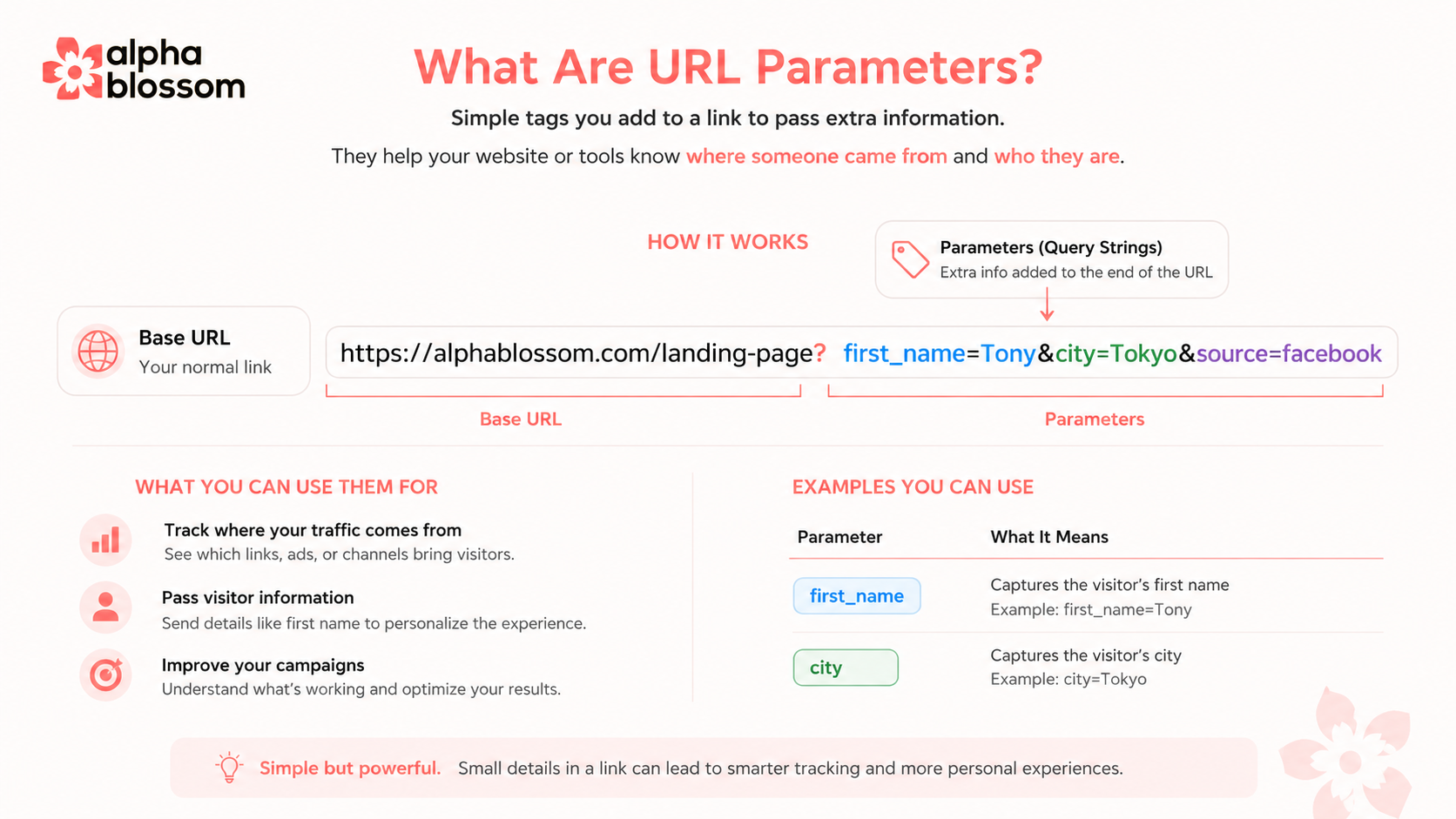
A URL parameter is just an extension of your web address that carries extra information. If you have never looked closely at one, the structure is easier than it seems. It is a standard part of how the web works, formally called a query string.
Start with your normal page URL, for example alphablossom.com/landing-page. Then:
Add a question mark immediately after the URL. This says "parameters start here."
Write your first parameter as a name and value pair, like first_name=Tony.
Separate every additional parameter with an ampersand, like &city=Tokyo.
Put together you get alphablossom.com/landing-page?first_name=Tony&city=Tokyo. Keep the values clean. No quotation marks, no special characters. Use an underscore where you need a space in the parameter name.
What About UTM Parameters?
UTM parameters like utm_source and utm_campaign are the same mechanism used for tracking rather than display. If you are spending money on ads and you are not using them, that is worth fixing before anything else, because they are how you find out which campaigns actually convert. Google's documentation on custom campaign parameters is the reference to start from. For this tutorial we are only using two parameters, first_name and city, purely for personalization.
How to Set Up Dynamic Text on an Existing Element
Open your funnel or website in the builder and find the text you want to make dynamic.
Click the text element. If it already contains a dynamic value you will see a highlighted box around it.
Choose Edit Dynamic Text.
Set the parameter name. This has to match what you put in the URL, so city here means ?city=Beaverton in the link.
Set the default value. This is what everybody sees when the parameter is missing, so make it something that reads perfectly on its own. In the example the default is "Portland area".
Pick your formatting: uppercase, lowercase, or title case. Title case capitalizes the first letter of each word, which is what you usually want for names and cities.
Decide whether to normalize separators. Turn this on and underscores or similar separators in the value get replaced with spaces, so lake_oswego arrives as "Lake Oswego" instead of "lake_oswego".
Save.
One detail worth copying from the video: the apostrophe and the S in "Beaverton's" are left outside the dynamic element. Anything inside the dynamic block gets replaced, so punctuation that should always be there belongs in the static text around it.
How to Build a Personalized Welcome Message From Scratch
Setting one up on a new element takes about thirty seconds.
Add or duplicate a text element and clear the text.
Type your line, for example Welcome back... The three dots are doing real work here, they are the fallback for a visitor whose name you do not have.
Highlight the part you want replaced.
Click the custom values icon and choose the new URL Parameter option.
In the popup, set the parameter to first_name and the default value to ...
Set your formatting and separator options, then save.
Now preview the page. On its own it reads "Welcome back...". Add ?first_name=Tony to the preview URL and it reads "Welcome back Tony". Change the value to Sandy and it updates instantly.
The One Limitation Worth Knowing
There is currently no way to attach a conditional comma or space to the parameter, so "Welcome back, Tony" with a comma is not clean yet. If the name is missing you would be left with a stray comma, and the fallback would have to be something awkward like "guest". For now, either write the line so it reads fine without punctuation, or use dynamic text for locations and headlines where the problem does not come up.
How to Pass Contact Data From a GoHighLevel Email Campaign
This is where dynamic text replacement in GoHighLevel stops being a neat trick and starts being useful. In an email campaign, the button link is where you build the personalized URL.
Open the campaign and select the button or link.
In the link URL field, paste your page URL.
Add your parameters and fill the values with contact merge fields, so you end up with something like ?city={{contact.city}}&first_name={{contact.first_name}}.
Save the campaign.
Watch out for this UI quirk. When you pick a merge field from the contact dropdown, it replaces the entire contents of the link field rather than inserting at your cursor. The workaround from the video: copy your finished link to the clipboard first, insert the merge field, then paste your link back in and delete the leftover text. Slightly annoying, and easy once you know it is coming.
The result is that every contact who clicks the button lands on a page showing their own first name and their own city, and anyone whose record is missing those fields sees your defaults instead. If you are building this into a longer nurture flow, it pairs well with GoHighLevel email sequences, where each email in the sequence can carry the same personalized link.
Where Dynamic Text Replacement Works Best
The two strongest use cases are the ones from the video, and they pull in different directions.
Local and service area marketing. One funnel can serve every town you cover. Point a Beaverton campaign at the page with ?city=Beaverton and a Tigard campaign at ?city=Tigard, and each visitor sees a headline naming their own community. That is a real conversion lift for local businesses, and it means you maintain one page instead of a dozen near-identical ones. It also keeps your site structure tidy, which matters if you care about how your local pages get crawled and ranked. If you are working that angle, it is worth knowing how to get your local business pages indexed on Google fast as well.
Email and newsletter personalization. Because you own the contact data, you can pass a real first name through and give people that VIP welcome when they arrive.
Paid ads are the limitation. Google and Facebook will not hand you personal information about the individual clicking your ad, for privacy reasons. What you can do is pass campaign-level values, so an ad set targeting one town can carry that town in the URL. General, not personal, but still effective.
One last housekeeping note. Once you start running several versions of a page for different towns and campaigns, it pays to keep the old ones under control rather than letting them pile up. How to Unpublish a Page in GoHighLevel Without Breaking Your SEO covers the clean way to retire a page when a campaign ends.
Related Links
How to Use GoHighLevel Email Sequences: Complete Setup Guide
How To Publish Your AI Studio Site and Set Up SEO in GoHighLevel
Related Videos
Video Transcript
[0:00] Hey there! Welcome back Guys and Gals. In this video I'm going to show you a cool new feature that just came out to the HighLevel. And that allows you to personalize your website and funnel pages. Based on parameters that you would add to the URL. So an example of that might be if you're sending out a newsletter inside to HighLevel. You might have a URL parameter that would be for first name. And then you can dynamically pull that first name based on who you're sending it to. And then you can say “Welcome back Tony” Or “Welcome back Sandy” Whoever is receiving that email. And whatever their first name is. You can also do it for city.
[0:34] So for example you could say “Portland Area's Premier Mortgage Broker”. And then if I live in Tigard you could say “Tigard’s Premier Mortgage Broker”. And if you live in Beaverton you'd say Beaverton's Premier Mortgage Broker”. So it just allows you to send out personal links that when somebody lands on the page it's going to be personalized to that contact. specifically. It's super easy to set up. And it's just a pretty cool feature if you really want to get into more personalization. You know perhaps you're sending people into a funnel and you want to be a little more personalized. Give them kind of that VIP feel like you're really welcoming them personally and speaking to them personally.
[1:09] So it's a really cool feature. And let's jump into it. And I'll show you how it's done. On the other side. So here's the example. Your local service painting website. Landing page. And you can see it says “Portland Area's Premier Professional interior, exterior and commercial painting. So what the parameter would be is. You would add your UTM parameter. I'll show you an example of this. And then I'll explain parameters really briefly. For those of you that may not know. But you would say. We already have some parameters. I would put the ampersand. And I would say (city=Tigard) And now you'll see Portland area just changed to Tigard’s Premier professional. And then if I wanted to say if you were from Beaverton.
[1:55] Then I would say Beaverton's premier professional interior. So it's a really cool way to personalize things. Really great for doing local SEO promotions and things like that. So now you're speaking to that person's specific community. Calling it out. And letting them know that “Hey we service your community”. So I've got this graphic here. That explains what URL parameters are. So a URL parameter is just an extension of your URL. And it allows you to add different specific information. So when somebody visits the link and has those parameters you can pull that into your CRM. In our case HighLevel. Or our AlphaBlossom CRM. And you can use that data for various purposes. So here's the example.
[2:31] We have our URL (alphablossom.com/landing-page?) And if you're going to add URL parameters. You will have to have a question mark immediately after your URL. And then you're going to add your parameters after the question mark. So the question mark. And then in this case we have (first_name=Tony) And then to add additional parameters you separate with an ampersand. And then we're going to have (city=Tokyo) And then you could say. For example (&source=facebook) If you're doing this you probably have a UTM parameters things like that. We got other information on that. That's a whole other thing. But if you're not familiar with UTM parameters I really recommend using those. Especially if you're doing paid ads. Absolutely important to understand which ones are converting.
[3:11] Where your traffic's coming from. And things like that. So you're not wasting your money. Also if you're doing email campaigns you want to know which links people are clicking on. Which emails are coming from. But in this case we want to use it just to personalize our website. So just going have first name. And city. Those are the two that we'll be working with. Here's some examples what you can use them for. And this shows you what the parameters are. And then the values. You don’t want to use special characters after. No quotations and things like that. So let's just (first_name=Tony) (city=Tokyo) And that's what we're working with. So let's just jump back into the funnel.
[3:44] And we'll show you how to set this up. And if you stay to the end I'm going to show you a practical application how you can use this in your email campaigns. So that when somebody clicks the link from the email their name or their city will show up on the website once they land on that page. Okay so here we are back in the funnel. and we're going to go into the funnel builder. So you can see now I've got this Portland area's premier. And you can see this little highlighted box here. If you click that. It's going to show you added dynamic text. And this is where you set the parameter. So the parameter is city.
[4:12] Remember that's the part that's going to identify what the information is. And then the default value is going to be Portland area. And then title case. You can determine do you want it to all be uppercase. Lowercase. Title case means it's going to be the first letter of each one's going to be capitalized. So however you want it to be formatted you can decide that. And then if want a normalized separator. So if you have underscores things like that it’s going to remove those and replace it with just a space. So that's really it. And then here for a default value. Of course you can use custom values if you want as well. And so.
[4:43] This could also be personalized. But we're just gonna leave it as Portland area. And let's save that. And then you can see that I have apostrophe in the (s) outside of that. because that's going to apply no matter what I have inside of this area here. So it shows you how to adjust this. But I didn't show you how to do it from scratch. So let's just show you how to set one up from scratch. I'm just going to duplicate this. And we're going to just delete this text here. And then I'm going to say Welcome Back. With the space. And then (...) Now what I'm going to do here is highlight this. And then I'm going to go in the custom values icon here.
[5:16] And we're going to select this new URL parameter setting here. And that's going to open our pop up. So this one is going to be name. And the default values is (...) So if there's no name if it's empty it's just going to say (welcome back ...) And again you can have your formatting here. And you can decide if you want to normalize the separators. the underscores and things like that. And then we'll just leave that like it is. And now let's preview that one. And so now that we've got an open you can see welcome back. ... Now I'm going to add my parameter for name. I'll probably say first name. Actually if you want to just do first name.
[5:51] And then we'll have (=Tony) And now it says welcome back Tony. And then it continues on to the next one. So if you change that to Sandy. And so the idea here is if you're sending out an email to somebody that email is going to dynamically insert their name here. And so every person that clicks on the link from that email it's going to give them a personalized welcome based on heir name here. There's other ways to do this also. But I think this is probably a little bit nicer. I wish that they would add an option to have something before and after. For example if I wanted to say welcome back. And I want to have a comma here.
[6:29] And then the name. There's really no way to do that. If the name is empty you have a fallback which is (...) In this case what would you say? Welcome back. Guest or something. It's a little bit goofy. So if we had an option to say “Yeah I want to do comma space before this or a space after” Which would only be if was a parameter here then those would display. That would give us a little bit more customization. But you got to work with what we got. So. For now this is still a nice improvement over what we had before. And in most cases you're probably not going to use it. I mean you don't need to use it with the comma things like that.
[7:03] This would be a better use case here. Where you have a location or something like that. Anyway that's how you do that. Now I'll show you one more thing here. If we're going to go into marketing. Emails. And then I'm just going to show you this. Campaign that I set up. This is how you would use it in practical terms. This is one way you would use it. So we've got our button here. Click here to book an appointment. And then in the link URL. I've got the link here. And then you can see I added my (city=contact.city) And then I could also say and name. I would actually do first name. Let's just do that equals.
[7:42] And then you would say contact first name. So you can select from here. But one thing is this is kind of a I think it's a I don't know if it's really a bug but it's a poor UI. If I come here to contact. and I select first name. No matter where I have my cursor as soon as I click this it is replaces all of that. So. It's not really user friendly. So if you copy the link first and then do that. Then you can just come back here and you can delete. What you've got a contact city. So I didn't save it. So now. Oh yeah I've got it. So now I can delete the one I typed in there.
[8:16] And then we'll just leave it at (first_name=) (contact.first_name) And then you want to make sure to save that. So let's go up here and save. And now before I do this. I have to go back here. And do one more change. I'm actually going to... Change this to first_name. So I think whether you do doing first name that's more appropriate. And save that. Let's just close that. Now if I come in here and preview this. You can see my contact information. So it has my first name. It has the city. So now. If I. Preview this. And click the button. You can see “Welcome back Anthony”. And then it's changed to Beaverton’s Premiere Professional. And then if you look at the URL you can see the parameters here.
[9:07] (city=Beaverton&first_name=Anthony) And so it's pulling that information here. So now any email that you send it's going to take the contact first name here. And it's going to take the contact city here. And it's going to update it. If they're empty it's just going to say welcome back ... And then here it's just going to say Portland's premiere professional. If the contact doesn't have that information. So really cool way to just add a personal touch for this. To speak to somebody personally. About their community or maybe mention their name. If it's that type of the funnel where you really want to give them like a VIP. Kind of a welcome treatment. And again. You can use this with any URL parameter.
[9:42] So if you're running for example Google Ads and you're running a campaign just to Beaverton then you may have that as one of your UTM parameters. And then you can pull that in here. What you can't really do with the Google Facebook is use personal information. Because of privacy and things like that. So if it's your own newsletter you can do that. Or you know pulling other links other ways coming from HighLevel. If you're running ads and things like that. You can only do it on a just a general level which means maybe you're running just adds to the Beaverton area and then you could populate that for there. In which case you probably don't need it because you can just make the ad that.
[10:15] But that way you can just have one funnel with parameters. And if you're sending different ads that funnel for some reason you could do that. Alright! Guys and Gals. So hopefully you found this helpful. Really cool way to add a personal touch to your landing pages. And then showed you some different ways where you can implement it practically by sending out emails that will grab the contacts information and populate that on the page. So. if you found this helpful if you're not already subscribed to the channel click that subscribe button down below. I've also got my free community down below. You can join. and I'm happy to help you in there. Post all kinds of tips updates tutorials and things like that.
[10:50] Inside of that free community. So please join there. And I'd love to see you inside of there. I Also have a 30 day free trial to HighLevel including a 30 day free bootcamp. That will help you get up and running quickly. So hopefully you'll be able to make money before your 30 days first payment ever comes due. And it will cover itself. So that's it. I'm happy to help. I got a lot of videos coming. So I will see you in the next one.