
Duration: Approximately 5 minutes | Published: April 22, 2026
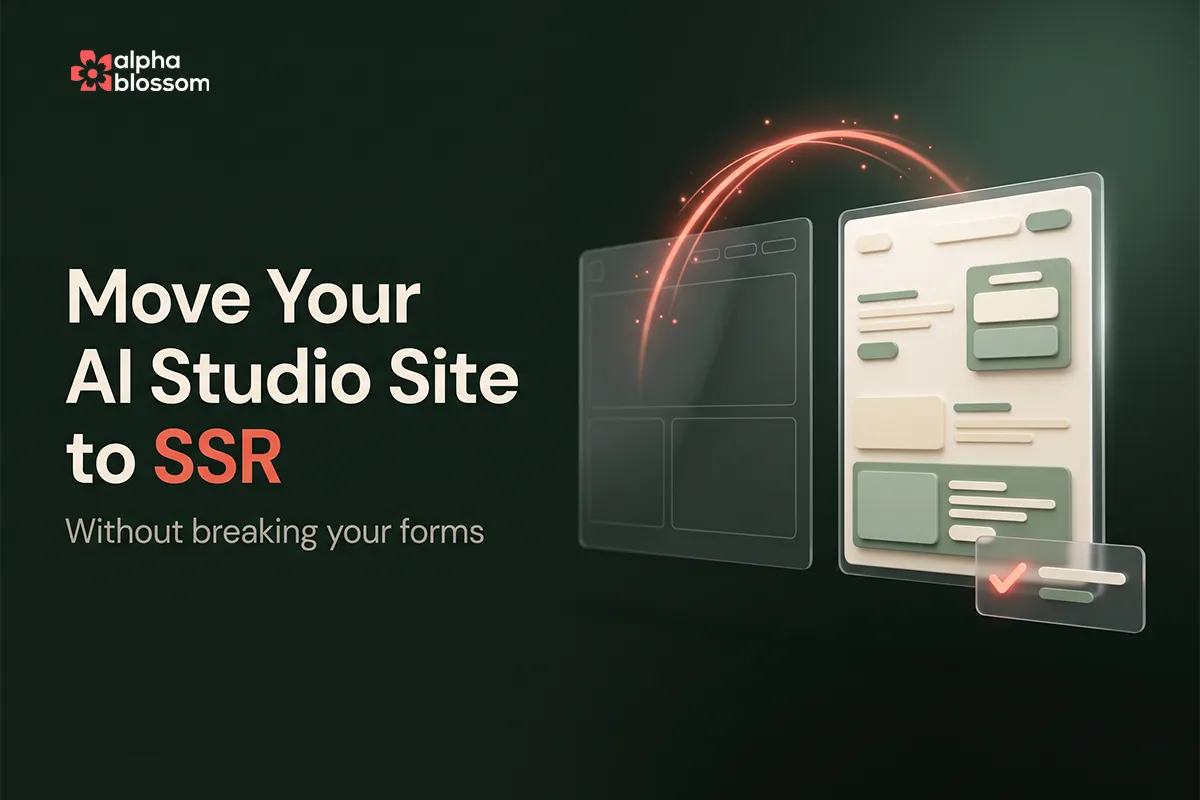
If you're using GoHighLevel's incredible new AI Studio for vibe coding, you've probably noticed a major catch: the forms it builds are custom-coded, meaning they don’t show up in your standard GHL Form Builder! So how do you trigger automations when someone opts in? In this quick tutorial, I’ll show you the exact workflow trigger you need to use—no messy hidden-field workarounds required. Learn how to seamlessly capture lead data from AI Studio and drop contacts straight into your standard CRM workflows!
Key Takeaways / Points:
The Custom Coding Catch: Unlike GHL calendars (which the AI pulls natively from your account), the AI Studio hardcodes custom HTML forms. They will not appear in your traditional GHL Form Builder.
The Magic Trigger: To start an automation from an AI Studio form, you must use the External Tracking Event workflow trigger.
Granular Filtering: Within the External Tracking Event settings, set your filter to Event is any of: Form Submitted, which will then populate a dropdown list allowing you to choose your specific AI Studio form.
Ditch the Old Workarounds: In the past, users had to prompt the AI to add hidden tracking fields to capture data. This new native integration completely eliminates the need for that extra step.
Seamless CRM Integration: Once the External Tracking Event is established, you can use all standard workflow actions (adding contact tags, firing internal notifications, sending emails) just like any native form.
FAQ's:
The AI Studio utilizes "vibe coding" to build custom elements from scratch. Because the form is hardcoded into the page's HTML, it operates outside of GHL’s native Form Builder.
You need to create a new workflow and select External Tracking Event as your workflow trigger.
Inside the External Tracking Event trigger, add a filter where Event is any of. Select Form Submitted, and GHL will give you a dropdown menu featuring the exact names of your custom AI Studio forms so you can choose the correct one.
No. While adding hidden fields was a great temporary workaround when the feature first launched, GHL's External Tracking Event trigger now maps the contact's name, email, and phone number directly into the CRM automatically.
Target Audience: GoHighLevel users, agency owners, local service businesses
Transcript Available: Yes
[0:00] Hey there! Guys and Gals! Welcome back to my YouTube Channel! In this short video I'm going to show you how you can use the new studio AI builder. And have it build out forms for you. And use those forms to create automations like you normally would with the form. So the new studio AI builder it's awesome. Everybody's raving about it. Vibe coding. So you can just go to a chat and build incredible websites. It can build custom forms for you. But the forms it builds are not the native HighLevel forms. Or if you're an AlphaBlossom user it's not the native form that we have in our account. It just builds custom forms and it does create those fields.
[0:32] And so there's a specific trigger we use that makes it super simple to identify which form using on the vibe coding platform. On the AI studio. And then when somebody submits a form then you can create your automations like you normally would inside of the CRM. So let's jump into it. I'll show you how it's done. Before we do. If you haven't already subscribed to the channel click that subscribe button. Like this video. And leave a comment. Be happy to get back to you. And if you are new to HighLevel or if you're looking to get into the agency side of things. Check out our affiliate link down below. We have a 30 day free trial.
[1:00] And I’m happy to support you along in your way in your journey. So let's get into it. And I'll show you how to set up your automations. So you can make sure to capture all that lead data. And then automate things going forward. So I'm inside of the new AI Studio builder. And if you guys have not played with this yet it's amazing. You can see one of our members created a wait list. Just a very simple opt in page here. With Name Email and Phone Number. So this is basically the page. Problem though is the forms built inside of AI studio are not part of the normal forms that you would see inside of the CRM.
[1:39] Inside of HighLevel CRM. Or if you're an AlphaBlossom user. And so you're probably wondering how can I do automations based on form submission? So let's jump into that. And when you come in here and you use the prompt to say “Hey I want to build an opt in form” It just codes the form for you. Whereas calendars are a little different. It actually pulls the calendars from your account and lets you select which calendar you want to use and embed that. It doesn't do that for forms it just hardcoded the form in there. So let's jump into the main CRM. And let’s going to Automations. Last week I was playing around this. And there was a
[2:10] tricky way of doing it. Where I actually asked a form to add a hidden field. And then I could then use that hidden field to tag the person. Because that information would always be submitted with the form. That was just kind of a workaround. While I kind of played around and discovered it. So here we're going to say create a workflow. Start from scratch. And I'm going to just name this. “AI Studio - Waitlist Optin” Okay. And then we're going to add a new trigger. And the trigger we want to use here is External Tracking Event. So. We’re going to look at that. And then the filter is Event. Is any of. Forms Submitted. So we want to use the
[2:48] form submitted. And I'm not sure we can get more specific than that. External form. Let's see if we can choose that here. There we go. I didn't build this. But I'm pretty sure this is the only one. So I'm going to select this "PIH Pitch Waitlist" And then I'm just going to rename this to "PIH Pitch Waitlist Form Submitted" And then we'll save that trigger. And that's it. So now basically what we have is when somebody ills out that form and specifically this form. Then it's going to trigger them. And enroll them into this automation. And then we can do whatever we want to do from there. So again the trigger we want to use this
[3:25] external tracking event. And then we're going to come in here and you can say add a tag. Add Contact Tag. Select your tags. Then you can save that. Of course you want to name this. I usually name it with what tag you're adding. You can add in internal notifications emails. Anything you can do with the workflows. Now you can do as normal. So the key is you use the external tracking event to trigger this workflow. When somebody fills out the form that you built inside of your AI studio. So hopefully that will help you. To be able to tie your automations in. With your new AI studio forms. Again it's a super awesome builder. I recommend you
[4:00] start playing with it. And soon we'll start seeing things like SEO friendly websites. And maybe even backend database connections. And things like that. Already I've seen people doing really really powerful things with it so. I definitely recommend playing with it. Now while it's free. Maybe you can build out some cool stuff. And then eventually it's going to go to we're going to be charged for tokens to use that. But hopefully you found this helpful. And I'll see you in the next video. Alright! Guys and Gals. That's it! Super simple. If you're not using the new AI studio I really recommend taking a look at it. It's amazing what you can do with it. And just getting better.
[4:29] And now that you know how to integrate it with your forms you can build beautiful websites. It’s very quickly. Very easily. And just capture that data and then bring it into your CRM. And do whatever you need to do with it. So thanks for watching. And again if you're not already subscribed click that subscribe button. Make sure to check out my affiliate links down below. And also have a free community down there. You can join. And I'm happy to support you along your journey. And I will see you in the next one.