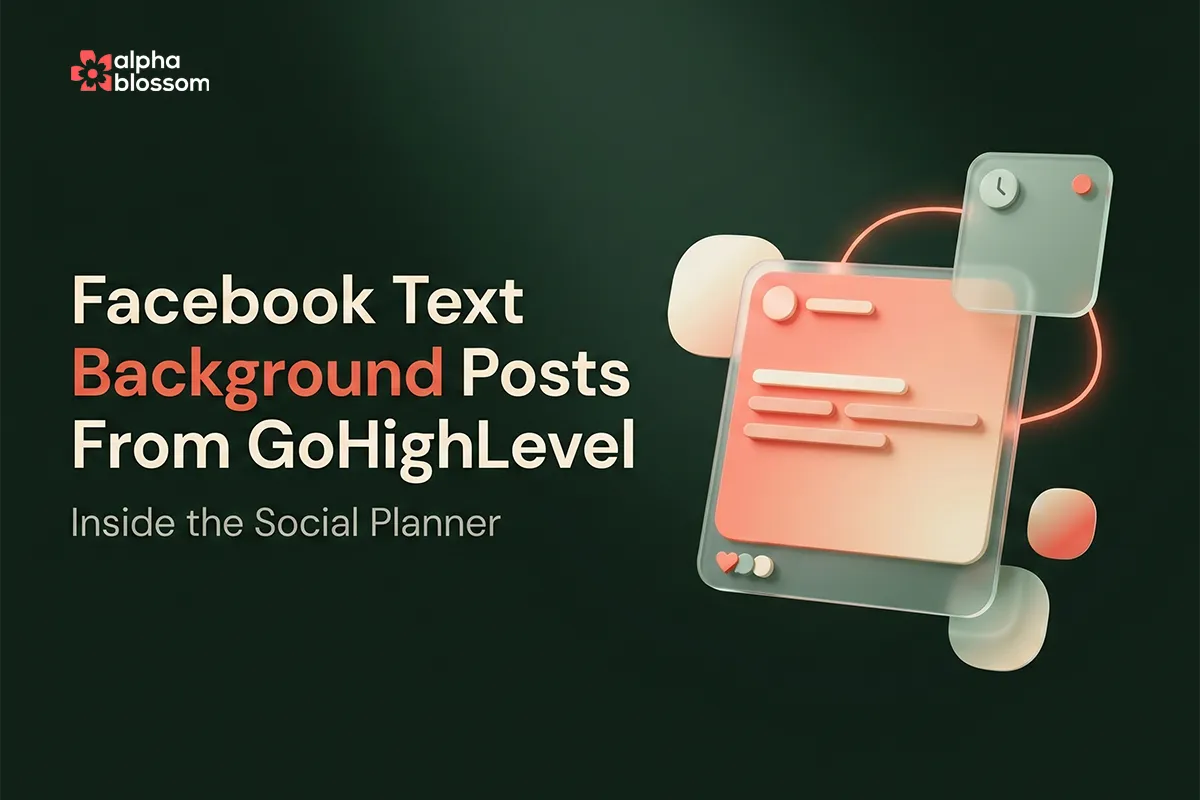
Facebook Text Background Posts in the GoHighLevel Social Planner
Facebook gives short text posts a serious engagement boost when you put them on those bold colored backgrounds. You have probably seen them: a one-line message, big type, vibrant gradient, often with a small arrow emoji pointing to the comments. They stop the scroll, they look great in the feed, and the algorithm seems to reward them. The catch, until now, has been that you had to log into Facebook directly to create one.
The GoHighLevel Social Planner just added native support for these posts. You can now create the same text-background style of post inside your CRM, schedule it, send it to multiple Facebook pages, and even cross-post a separate image version to Instagram, all in one workflow. For agencies and creators running a real content calendar, that is a meaningful upgrade.
In this guide, I will walk you through what the feature is, where to find it in the Social Planner, how to pick backgrounds and write the post, and how to use scheduling, recurring posts, and first comments to get the most out of every text-background post you publish. If you are already using GoHighLevel automations to drive content workflows, this fits right in.
Facebook Text Background Posts in the GoHighLevel Social Planner
What Facebook Text Background Posts Are (and Why They Work)
The 130-Character Limit (and the Workaround)
What Is New: The GoHighLevel Social Planner Now Supports Them
3. Select Facebook and Find the Text Background Icon
4. Write the Post and Confirm the Background
5. Add Tags, Category, and First Comments
6. Choose Your Scheduling Option
Cross-Posting to Instagram in the Same Workflow
High-Engagement Patterns to Try
The Hook Plus First-Comment Pattern
How This Fits Into a Larger Content Workflow
Coming Soon: Bulk Creation With Go Bonsai
Writing Past the Character Limit
If you'd rather see this in action before diving into the steps, watch the full video walkthrough here or watch "How to Post Facebook Text Backgrounds From the GoHighLevel Social Planner (New Feature)" on Youtube
What Facebook Text Background Posts Are (and Why They Work)
Facebook text-background posts are short status updates rendered on a vibrant solid or gradient background instead of as plain text in a white box. Think of them as a hybrid between a text post and an image. The type is the focal point, and the background does the visual work that an image would normally do.
They have two consistent advantages over a plain text post or even a standard image post. First, they stop the scroll because the background color is visually different from everything around it in the feed. Second, the typography is locked to a larger size, so even a short message reads at a glance. Many social-media operators have noticed stronger reach and engagement on these posts compared to regular text-only updates.
The 130-Character Limit (and the Workaround)
The catch is the character count. Facebook only renders the background when the post is short, somewhere around 130 characters. Type more than that and the background disappears, and the post reverts to a standard text update that no longer stands out.
A common workaround you have probably seen on your own feed: the post is one short hook that ends with a downward-pointing emoji, and the longer content sits in the first comment. The text-background frames the hook, and the first comment delivers the value. It is a small trick that has become a standard pattern for high-engagement posts.
What Is New: The GoHighLevel Social Planner Now Supports Them
For a long time the only way to publish a Facebook text-background post was to log into Facebook directly and create it manually. That was a real friction point for anyone running scheduled content from a CRM. The Social Planner could publish text and image posts, but the background-styled posts were off the table.
The latest update fixes that. The Social Planner now includes a Facebook text background option that opens the same background picker you see in Facebook itself: gradients, solid colors, and the special themed-icon backgrounds. You write the post, pick a background, and schedule it like any other Social Planner post. The output on Facebook looks identical to one created natively in the app.
How to Set It Up Step by Step
The feature lives inside the standard Social Planner post creator. Here is the full walkthrough.
1. Connect Your Facebook Page
If you have not done this already, you need at least one Facebook page connected to the Social Planner. The Facebook API does not allow third-party tools to publish to personal profiles or groups, so the connection needs to be a page. You can connect more than one page if you want to publish to several at the same time.
2. Open the Post Creator
From inside your sub-account, go to Marketing, then Social Planner. Click New Post in the top right. The post creator opens with all your channel options on the left.
3. Select Facebook and Find the Text Background Icon
With Facebook selected, look at the right side of the post editor. You will see an icon labeled Add a Facebook Text Background. Click it and the background picker opens. This is the same set of options you see in Facebook itself: solid colors, gradients, and the themed-icon backgrounds. Pick the one that fits your post.
4. Write the Post and Confirm the Background
Type your post in the editor. Keep an eye on the character counter. As soon as you cross the 130-character threshold the background will drop and the post will revert to a standard text update. When you are happy with the text, click the background icon again to lock the look in.
5. Add Tags, Category, and First Comments
Use the category dropdown to organize the post if you are running automated reposting (handy for evergreen content). Add internal tags if you want to track the post across reports. And if you are using the downward-emoji plus first-comment pattern, drop the longer payload into the Follow-Up Comments field. The Social Planner posts it as the first comment immediately after the post goes live.
6. Choose Your Scheduling Option
The Social Planner gives you several options for when the post goes out:
Post Now publishes immediately.
Schedule lets you pick a specific date and time.
Queue drops the post into your next available category time slot.
Recurring repeats the post on a schedule you define.
Save as Draft stores it for finishing later.
Send for Approval routes it to a team reviewer if you have an approval workflow set up.
Pick what fits your content calendar and confirm.
Cross-Posting to Instagram in the Same Workflow
If you want the same hook to go out on Instagram too, the Social Planner lets you stack channels in the same post. The text-background option is Facebook-only, but on the Instagram side you can attach an image (or a Reel, or a Story) while reusing the same caption. That means you are not duplicating work to keep both channels consistent.
One important note: each channel keeps its own preview, so you can fine-tune the image on Instagram without affecting the Facebook text background. This is the kind of multi-channel workflow that pays back the time you spend learning the Social Planner.
High-Engagement Patterns to Try
The Hook Plus First-Comment Pattern
The classic. The text background carries one short, attention-grabbing line ending in a downward arrow emoji. The first comment carries the actual value (longer copy, links, a call to action). This pattern works because the background-styled post wins the scroll, and the first comment then sells the click.
The Question Hook
Open with a question that gets people typing. Questions are reliably good for comments, and comments tell Facebook the post is worth showing to more people. Examples: "What is one thing you wish you knew before starting your business?" or "Which of these is your biggest bottleneck?"
The Bold Statement
A short, strong opinion or claim that invites pushback or agreement. These work especially well on industry pages where your audience has a real opinion on the subject.
Test Different Backgrounds
The background you pick affects the read. Soft gradients feel premium, bright colors feel urgent, the themed-icon backgrounds feel personal. Test a few and see what your audience responds to. Save the winners as templates you reuse.
How This Fits Into a Larger Content Workflow
If you are already using GoHighLevel for email marketing or for capturing leads from external sites, the Social Planner is the natural complement on the organic-social side. You write the content once, schedule it across the planner, and use the CRM to capture and follow up with anyone who comments, clicks, or opts in. The text-background post is the front door. The rest of the platform is the funnel behind it.
Coming Soon: Bulk Creation With Go Bonsai
One limitation of the native Social Planner workflow is that you still write each post by hand. If you are publishing daily or running multiple client accounts, that adds up. We are launching a tool called Go Bonsai that focuses on this gap. It generates content in your brand voice, supports the text-background style, and pushes posts directly into the Social Planner. The idea is that you can produce a month or two of on-brand, high-engagement posts in minutes and have them queued up to publish on autopilot. Watch the YouTube channel for the launch and feature walkthroughs.
Common Mistakes to Avoid
Writing Past the Character Limit
The background silently drops once you cross the threshold. If your published post looks like a regular text post instead of the styled background, that is almost always the reason. Trim until the background reappears in the preview.
Forgetting the First Comment
If your strategy relies on the longer payload being in the first comment, set that up before you schedule. It is easy to publish the hook and forget to attach the follow-up.
Using the Same Background Every Time
The backgrounds work because they stand out. If every one of your posts uses the same gradient, the novelty drops. Rotate.
Next Steps
Open the Social Planner, write one short hook, pick a background, schedule it for tomorrow morning. You will see the same result on the page as if you had built the post directly in Facebook. From there, build a rhythm of one or two text-background posts per week, mixed with your normal image and link content.
If you run into questions, drop a comment on the YouTube video or join our free community.
Related Links
Related Videos
Video Transcript
[0:00] Hey! Guys and Gals. Welcome to my YouTube channel. In this video I've got something really cool to show you. This is a new feature that was added inside of the AlphaBlossom CRM. Or if you're a HighLevel user. It's a new feature that will be available to you in the Social Planner. So typically when you go to Facebook you have an option for shorter posts to have different backgrounds showing. And a lot of people like those because they're very engaging. So recently HighLevel added the feature to generate those same posts inside of the social planner. So you can create your posts. And schedule them. Send them out. And they will carry over those same backgrounds as a text post.
[0:32] So instead of an actual image it's just text on a background. Very engaging. Very common. And you've got a lot of different options for the backgrounds you can use as well. So in this video I'm going to show you how to set that up inside of your HighLevel social planner. And then also I have a really cool app coming out. It's called GoBonsAI. And it allows you to create these posts in bulk. And you can create them in your voice on brand. Highly relevant. The writing sounds like you're writing. And we've added this this feature as well. So now you can create these posts inside of our GoBonsAI app. Push them to your HighLevel planner.
[1:03] So you can create a month or two months worth of posts in minutes in this style. So we're going to show you how to do that in the HighLevel planner. So let's just jump into it. Before I do if you're not already subscribed to the channel click that subscribe button down below. Make sure to like and comment on this video. And if you're new to HighLevel or if you're looking to start your own agency. I've got a 30 day HighLevel free trial down below. Plus a free bootcamp. Really an amazing offer. So make sure to click on that link down below as well. And we also have our free community down there where you can click on that and join my free community.
[1:31] To learn more about HighLevel. Where I love supporting people on this. So let's just jump into it. And I'll show you how it's done. Okay so. I'm inside of a facebook here. my facebook page. And if you go in to create a new post. You have this option here with shorter post. I believe it's up to about 130 characters. And then you can select from a bunch of different post backgrounds. And then say what's on your mind. "This is my text post. Short text only". And you see if you keep typing it's going to eventually disappear. When it gets to about. I think it's 130 characters. So you can see when it gets to be a certain length.
[2:13] It will disappear. There you go. So now it disappears. And it just goes to regular one. Now you would need to have an image or something like that. So it's really cool. A lot of times you'll see people do is they'll have something really engaging here. And then they'll put a down pointing emoji. So something like. This guy here. So it just really grabs people's attention. The down or emojis say’s “Hey! check the comments for more details”. And so let's just jump into the HighLevel social planner. I'll show you how that works. So inside of our HighLevel account. You're going to go into Marketing Into your Social Planner. Now this is assuming you already have your Facebook page connected.
[2:48] The Facebook API doesn't lets you push automated posts into groups or your personal profile. But you can have multiple pages connected here. So. We're going to come in here. We're going to click New Post. Create a post. And then I'm going to select Facebook from here. And now you can see we've got this same icon over on the right. It says “Add a Facebook text background”. So if you click on that it opens up the same options you see inside of Facebook. And you can just come in here. And earlier we had the heart. You can use that. Or you can use different gradients. All kinds of different things. So let's just use this gradient here.
[3:21] And we're going to say. "You can now post FB text messages with backgrounds directly in your GHL social planner". And then click the icon here. That's it. You see the preview here. Of course you can do follow up comments. You've got all your other options here. You can post these to different categories. Which is really cool to allow you to do automated reposting and things later. You can have tags. So you can organize things here. And then this is a Feed. Ofcourse you can do reels and stories. But this I believe just works for the feeds. Oh here you got a character limit. So it tells you how many characters you have here. So let's see what that shows.
[3:59] If we pull that out. Yeah so. We've got 130 characters. So yeah I was right on that. And you can also post to multiple Facebook accounts if you have it. If you did post it like an Instagram here. Then you could upload an image for Instagram. So if you want to customize for each channel. Now you can come to Instagram. And you can upload an image here. Let's just grab something really quickly. And let's see did that affect our Facebook. So you can see our Facebook posts still works as expected. Now our Instagram post has the image. And then the text is in the caption. So you can do multiple platforms at once. Which is really really great.
[4:37] So. I just wanted to share this. And then when you're done. You can post it. Now you can schedule the post. You can send it out to be approved. You can schedule it as a recurring post. And then select what times you want it to be recurring on. Or you can just add it to a queue. Or you can save it for later as a draft. And then later you can come in and finish it up. So. Super cool feature. again, these are super engaging posts and know the first comments down below. Again these are super engaging posts. And you know the first comments down below. And then you can add additional comments as you go.
[5:03] Maybe they will help your engagement as well. Alright! Guys and Gals. So hopefully you guys found this video helpful. I think this is a really cool feature that they've just added. And as I mentioned earlier our app will be out soon. Where will allow you to do this in bulk. You can create you know months worth of content. In just a few minutes. And it will support selecting these different image backgrounds. Push them into your HighLevel planner. So they'll be scheduled to go out on autopilot. So give it a test. Let me know in the comments down below. If you use this style of social media post on Facebook. And what do you think about the feature inside of the HighLevel social planner.
[5:35] And make sure to subscribe to the channel. Comment on this video. And don't forget we've got a 30 day free HighLevel trial down below. Along with the free bootcamp. So if you're new or thinking about starting your agency. 30 days gives you a great chances to start making some money before you even get your single bill. And that way you've got it covered. Before your first bill comes. So that's it! Guys and Gals. I will talk to you on the next one. Thank you.